
AI & MCP integration
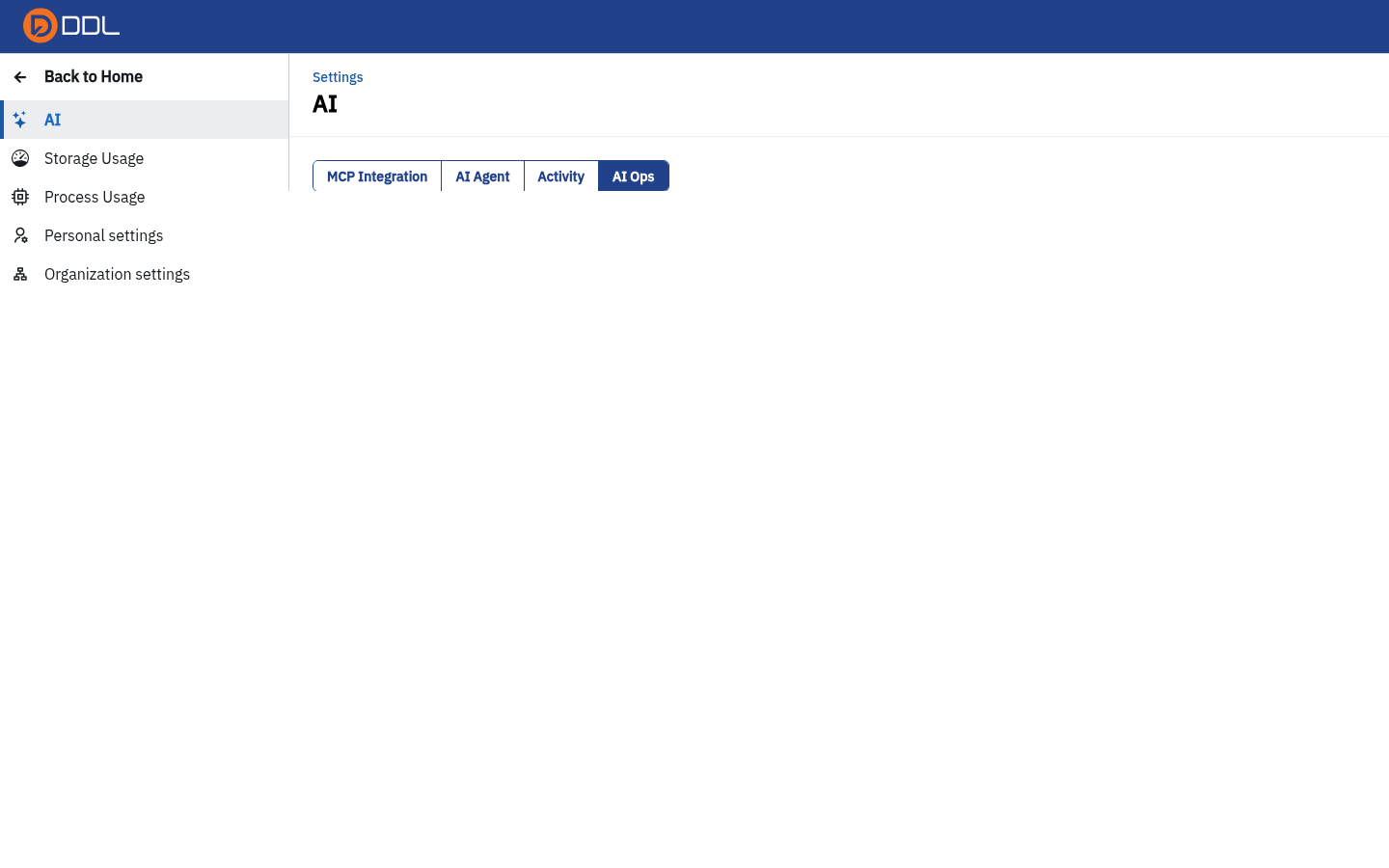
Purpose: DDL's AI features are configured in one place — Settings → AI (/settings/ai-integration) — across four tabs: MCP Integration, AI Agent, Activity and AI Ops. This page tells you exactly what each tab does, what you can safely share, and what depends on how your instance was deployed.
Read this first: the in-app AI assistant is deployment-dependent
DDL ships an AI Assistant chat in its front-end, but it is only shown when the deployment configures the assistant service. The application states the condition itself, at Settings → AI → AI Agent → Engine status:
Service —
AI_ASSISTANT_URL is not set for this DDL, so the AI Assistant is hidden— Not configured
On an instance where this reads Not configured, there is no chat button, no chat panel and no keyboard shortcut that opens one — not on the home dashboard, not in the pipeline, and not in the SQL editor. That is the product behaving as designed, not a broken feature or a missing permission. Everything else on this page still works.
What you can always use, assistant or not:
| Surface | What it gives you |
|---|---|
| MCP Integration | Connect an external AI client (Claude Code, Claude Desktop, Cursor, VS Code, OpenCode, Codex, Gemini CLI, Windsurf, any other MCP client) to DDL |
| AI Agent | The administrator's control panel for models, limits and data-sharing policy |
| Activity | A per-user log of AI tool calls |
| AI Ops | Instance-wide AI cost, calls, errors and usage breakdowns |
MCP Integration: connect an assistant to DDL
The tab's own framing is the clearest explanation:
"Connect AI assistants such as Claude Code, Cursor, VS Code, OpenCode, Codex, Gemini CLI, or any other MCP client to DDL through the Model Context Protocol (MCP). The assistant acts as you: it only sees projects you can access, limited to the token's level."
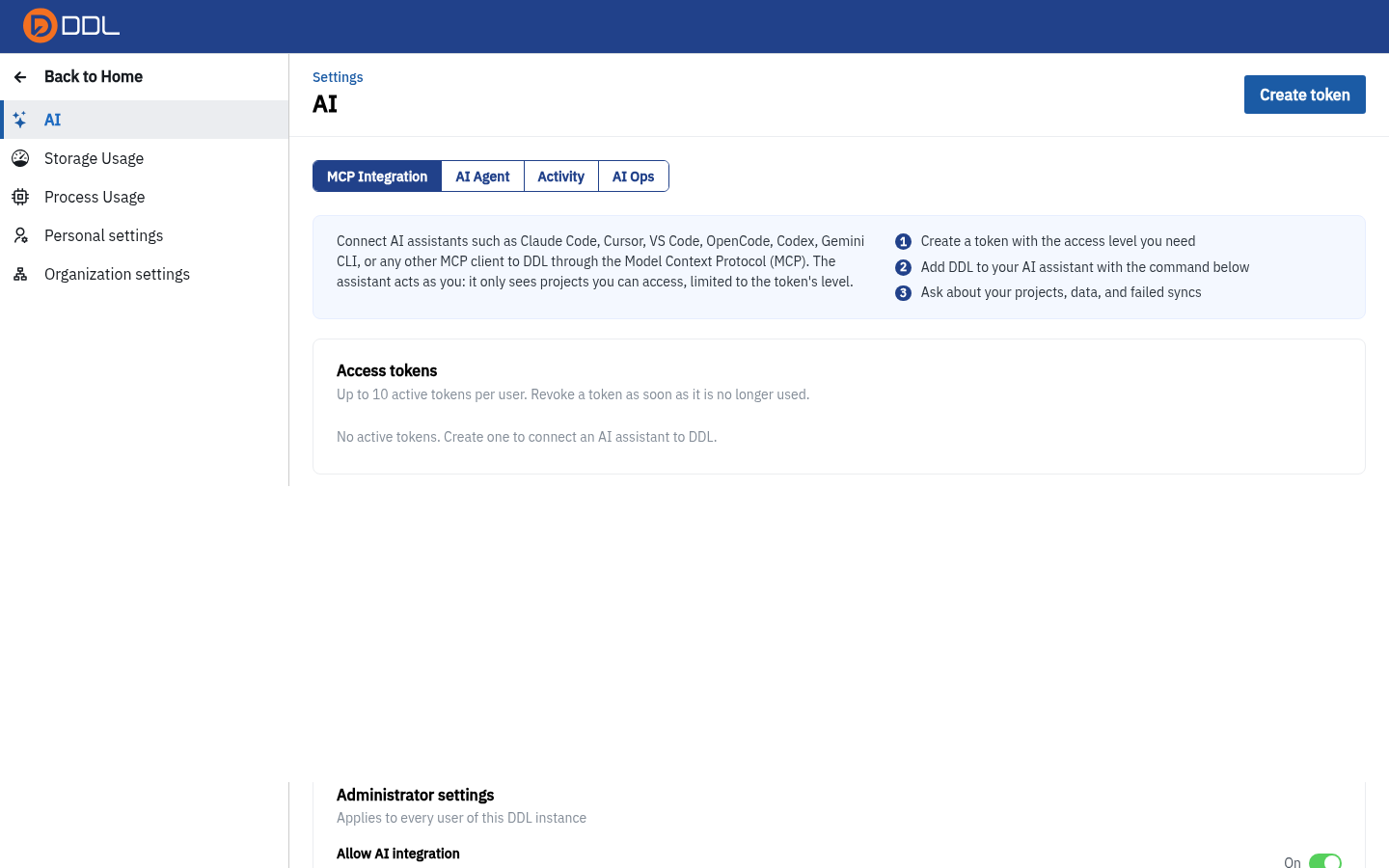 The three numbered steps at the top, the Access tokens list, the Connect your AI assistant block with client tabs, and the Administrator settings block at the bottom.
The three steps it shows you:
- Create a token with the access level you need
- Add DDL to your AI assistant with the command below
- Ask about your projects, data, and failed syncs
Step 1: create a token
- Click Create token (in the Access tokens block, also mirrored in the tab row).
- Fill in the dialog.
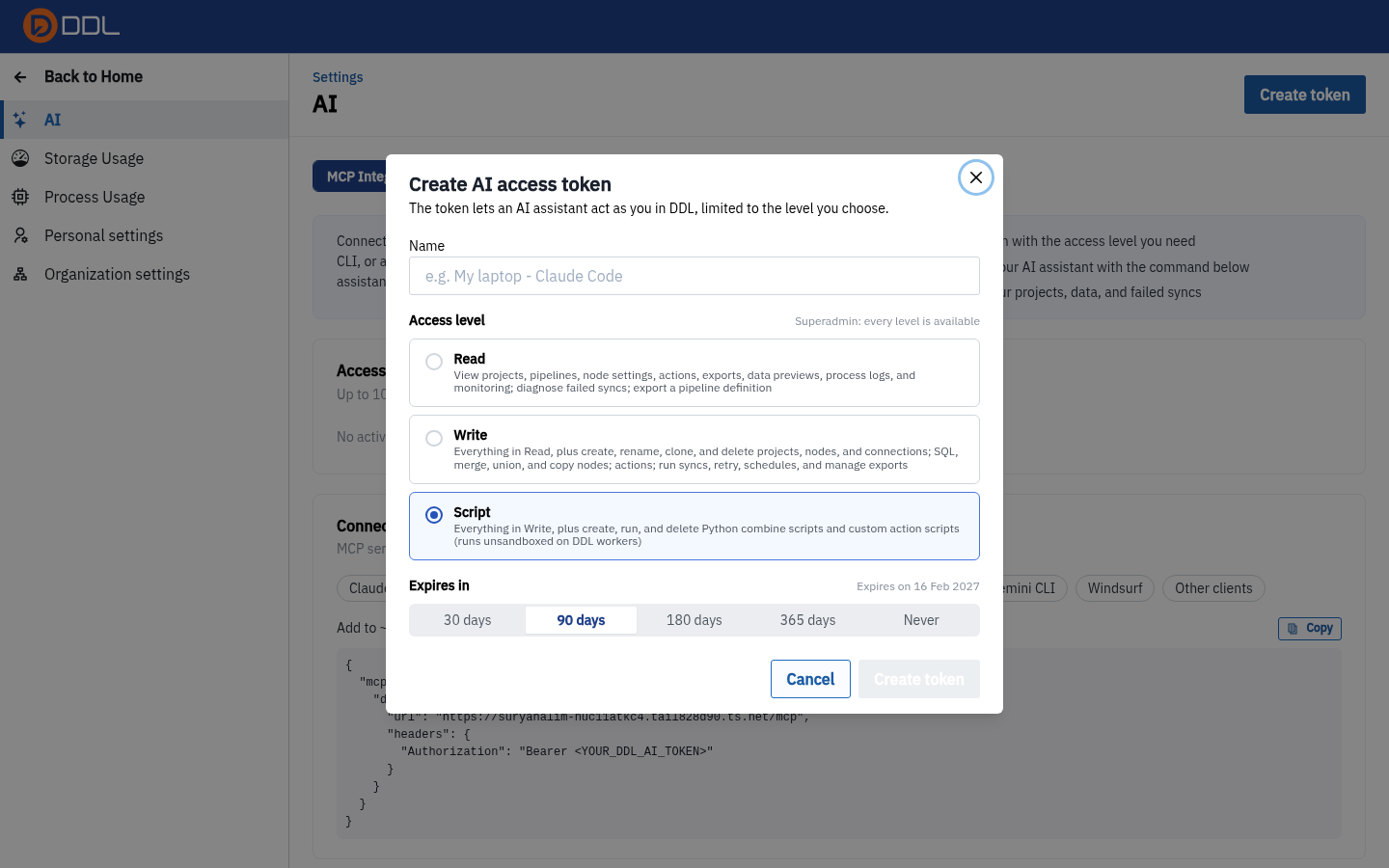 Name, access level (Read / Write / Script) and expiry, with a preview of the expiry date.
| Field | Options |
|---|---|
| Name | Free text — name it after the client and person, e.g. cursor-alex, so revoking later is obvious |
| Access level | Read — "View projects, pipelines, node settings, actions, exports, data previews, process logs, and monitoring; diagnose failed syncs; export a pipeline definition" |
| Write — "Everything in Read, plus create, rename, clone, and delete projects, nodes, and connections; SQL, merge, union, and copy nodes; actions; run syncs, retry, schedules, and manage exports" | |
| Script — "Everything in Write, plus create, run, and delete Python combine scripts and custom action scripts (runs unsandboxed on DDL workers)" | |
| Expires in | A duration (e.g. 30 days) with a date preview. Instance defaults: 90 days default, 365 days maximum |
Grant the lowest level that works
Read answers most "what broke?" and "what's in this table?" questions. Write lets the assistant delete projects, nodes and connections. Script runs Python unsandboxed on DDL workers — treat it as an administrator-level grant. A [REDACTED] sees all three levels; that does not mean all three are appropriate.
A token is a password
- Its value is displayed once, at creation. Copy it immediately; there is no "show again".
- Never paste a real token into a ticket, chat, screenshot, repository or this kind of guide. Documentation should use a placeholder such as
<YOUR_DDL_AI_TOKEN>. - Up to 10 active tokens per user. Revoke a token as soon as it is no longer used — the page says so itself.
- An empty list is normal on a fresh account: "No active tokens. Create one to connect an AI assistant to DDL."
Step 2: add DDL to your AI client
The Connect your AI assistant block shows your instance's MCP server URL (MCP server: https://<your-ddl-host>/mcp) and a tab per client, each with a copyable snippet.
 The Claude Desktop tab: JSON for
claude_desktop_config.json using npx -y mcp-remote with an Authorization header, and the reminder to restart Claude Desktop after saving.
 The Cursor tab: JSON for
~/.cursor/mcp.json (or .cursor/mcp.json in a project) with the url and an Authorization header.
Available client tabs: Claude Code, Claude Desktop, Cursor, VS Code, OpenCode, Codex, Gemini, Windsurf, Other.
The shape of every snippet is the same — an endpoint plus a bearer token:
jsonc
// Cursor — ~/.cursor/mcp.json  (placeholders only; never commit a real token)
{
  "mcpServers": {
    "ddl": {
      "url": "https://<your-ddl-host>/mcp",
      "headers": { "Authorization": "Bearer <YOUR_DDL_AI_TOKEN>" }
    }
  }
}
bash
# Claude Code — run in a terminal
claude mcp add --transport http ddl https://<your-ddl-host>/mcp \
  --header "Authorization: Bearer <YOUR_DDL_AI_TOKEN>"
Then, as the Claude Code tab says: start a new session and run /mcp to check that ddl is connected.
Keep tokens out of version control
Put the token in an environment variable (DDL_AUTH) or your client's secret store, and commit only the placeholder. If a token ever reaches a shared repository, revoke it in DDL immediately and issue a new one.
Step 3: ask about your work
With a client connected, ask it about projects, nodes, data previews, schedules and failed syncs. Remember the scoping rule: the assistant acts as you, so it can only see what your account can see, at the level of the token you issued.
Administrator settings
The bottom block — "Applies to every user of this DDL instance" — is what gates AI integration for everyone:
| Switch / control | Effect |
|---|---|
| Allow AI integration | Master switch for MCP integration across the instance |
| Highest access level | Caps every token at Read, Write or Script, regardless of what a user asks for |
| Allow tokens without expiry | Permits non-expiring tokens. Leave off unless you have a rotation process |
| Show all users | Lets administrators see every user's tokens and activity, not just their own |
These are shared-instance controls
Changing them affects all users. If you are not the DDL administrator, expect these to be read-only for you and route requests through your admin.
AI Agent: models, limits and what may be sent
The AI Agent tab is the engine configuration. Most users will only ever read it; it is owned by superadmins ("Only superadmins can change this page; other users can view it").
 Top of the tab: model-provider Connections *, Model per role , and Engine & model .
| Block | What it controls |
|---|---|
| Connections | Model providers the assistant may use. Credentials are stored encrypted and never shown again; each row offers Test / Edit / Delete and a status such as Connected |
| Model per role | Four roles, each with a connection + model: Agent ("Thinks and uses DDL tools: AI Assistant chat, Pipeline Doctor, Ask Data and AI Builder"), Fallback ("Used automatically when the agent connection fails"), Fast (lightweight checks: topic check before each question, AI Action in pipelines, suggested descriptions in AI Context), Sensitive data (must be a connection flagged Runs inside the company (internal); without it "the AI does not read sensitive data") |
| Engine & model | AI Assistant switch ("Ask AI and the AI workspace for every user"), the model, its price, effort (low / medium / high), access limit (read (view only) / write (with Approve)), monthly budget, and questions per user per minute (1–600) |
| Response limits | Longest answer (1,000–32,000 tokens), rounds per answer (2–30), time limit per answer (30–900 s), rows read per lookup (10–1,000), approval waits (1–120 min) |
| Data sent to the AI | What leaves your instance: pipeline structure / node names / status are always sent; switches for SQL of nodes, error log excerpts, data-row previews, small query results, file attachments, file content |
| Mask personal data | "E-mail, phone, NIK and card numbers are replaced before anything is sent to a model provider", with a built-in list of 37 column names (nama, full_name, email, nik, no_rekening, dob, …), an Add field for custom columns, Reset to defaults, and up to 10 custom patterns whose matches surface as [LABEL_1] |
| AI Action | Enables AI Classify / Extract / Summarize / Translate / Prompt inside pipelines, with a maximum number of distinct values per run (default 5000, range 1–20,000) |
| Engine status | Whether the assistant service is configured — the AI_ASSISTANT_URL notice quoted at the top of this page |
 The AI Action card, Mask personal data rules, and the Engine status block reading Not configured on this instance.
Two settings answer most "is my data safe?" questions
- Data sent to the AI — what the assistant may include in a request.
- Sensitive data (AI) in Project Settings — whether this project's data may be read by the company's own model at all. Together with the Mask personal data list, they define the data path. Everything else is about which model sits at the end of it.
Do not flip AI switches on a shared instance without agreement
Model choice, budget, data-send policy and masking rules are compliance decisions, not preferences. The page's own footnote notes that chat history is kept for 90 days and only its owner can open it, while admins see the tool-call activity log.
Activity and Ops: what the AI has been doing
Activity: per user
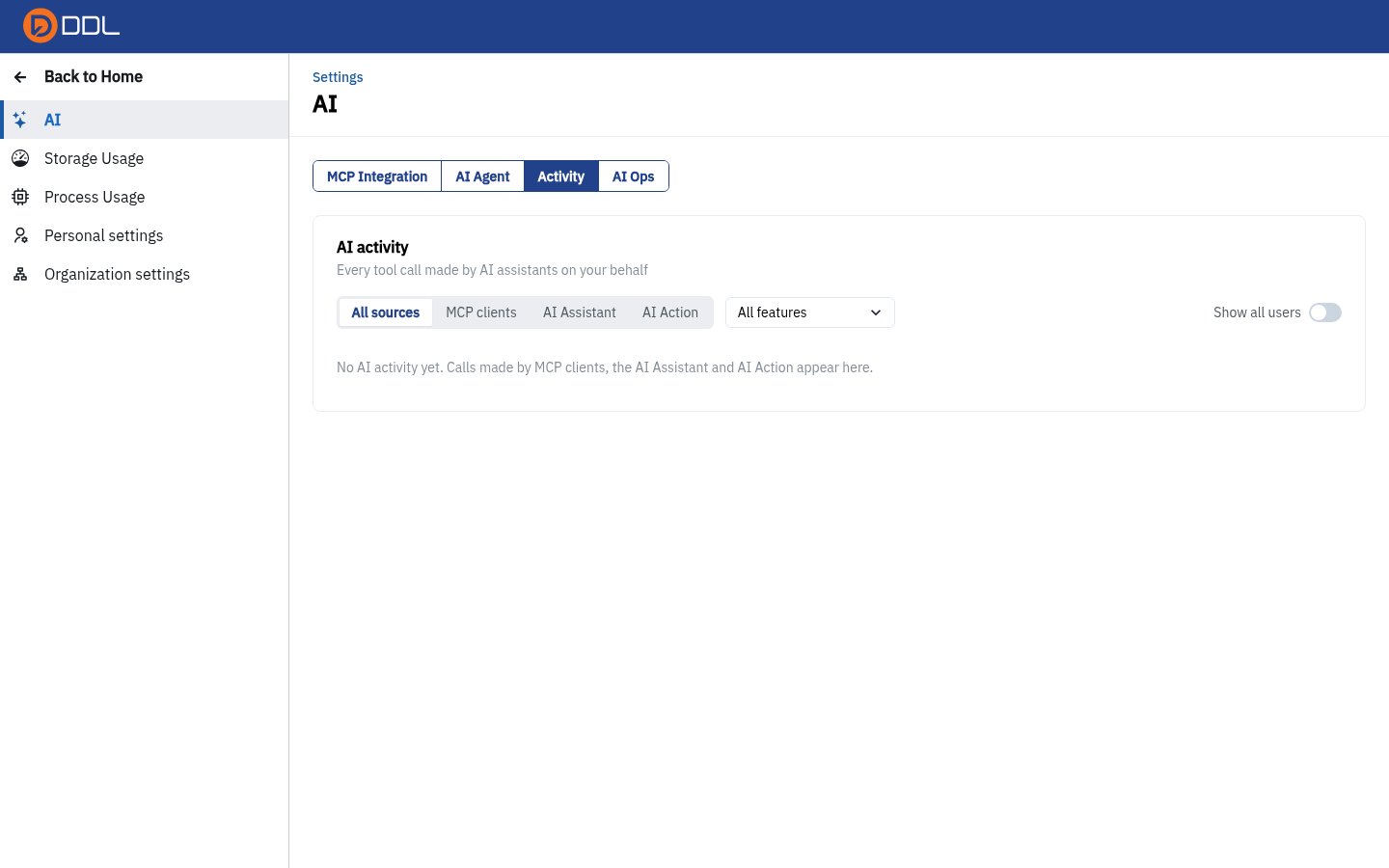 "Every tool call made by AI assistants on your behalf."
| Control | Options |
|---|---|
| Source filter | All sources · MCP clients · AI Assistant · AI Action |
| Feature filter | Chat, Pipeline Doctor, Ask Data, AI Builder, AI Audit, AI Action, AI Context, AI agent, MCP |
| Show all users | Switch (administrators) |
On an account that has not used AI yet it reads: "No AI activity yet. Calls made by MCP clients, the AI Assistant and AI Action appear here."
AI Ops: instance-wide
 Period selector, the cost / calls / errors / fallbacks tiles, and the by-feature table.
 The breakdown tables: by feature, by model, top users, top projects.
| Block | Contents |
|---|---|
| Period | 7 / 30 / 90 days |
| Tiles | Cost, Calls (with tokens in / out), Errors (and their share of calls), Fallbacks, This month |
| By feature | Calls per feature — MCP, Chat, AI Builder, … |
| By model | Model, connection, calls, cost |
| Top users / Top projects | Who and what is consuming AI |
| By agent | Agent conversations, when there are any |
| Eval runs | Suites: All suites / Pipeline Doctor / Ask Data / Tools / AI agent |
Activity is yours; AI Ops is the whole instance
This pair confuses people constantly. On the instance this guide was written against, Activity for the signed-in user was empty while AI Ops reported 211 calls including 107 labelled Chat — because AI Ops aggregates every user and every project on the instance, including historical data from other deployments. A non-zero Chat count in AI Ops does not mean your account has chat. See the FAQ.
If you do not see any AI features
| Symptom | Cause | What to do |
|---|---|---|
| No chat button anywhere | AI_ASSISTANT_URL not set for this DDL | Ask your administrator whether the assistant service is deployed. Meanwhile use MCP |
| Create token is missing or greyed out | Allow AI integration is off, or your role cannot manage AI | Ask your DDL administrator |
| MCP client connects but sees nothing | The token's access level, or you genuinely have no projects | Check the token level; check /projects |
| AI Ops shows costs you did not incur | It is instance-wide | Use Activity for your own calls |
| Sensitive-data model says Not set up | No internal-flagged provider connection exists | Until one is configured, the AI will not read data marked sensitive |
Next: Settings & usage · Related: SQL Query, Monitoring, Projects