
Schedules
Purpose: a schedule makes a source node re-sync itself on a cadence, so a dataset in your pipeline stays fresh without you clicking Sync now. Schedules are configured per project at Schedule (/projects/<id>/schedules), and can also be started from a node on the canvas.
The Schedule tab
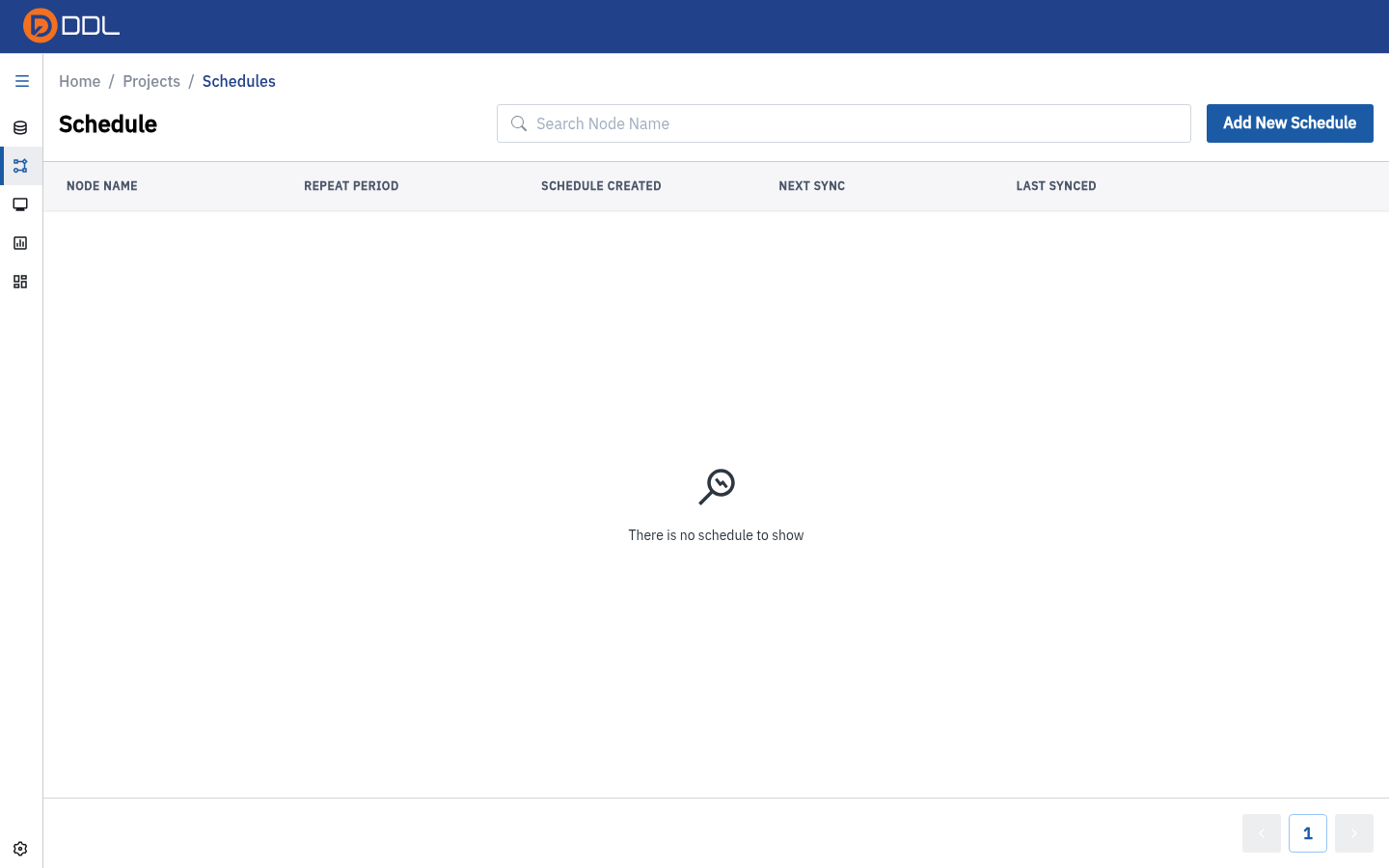 An empty schedule list: Add New Schedule above columns NODE NAME · REPEAT PERIOD · SCHEDULE CREATED · NEXT SYNC · LAST SYNCED , with the message "There is no schedule to show".
| Column | What it tells you |
|---|---|
| NODE NAME | Which source node the schedule refreshes |
| REPEAT PERIOD | How often it runs |
| SCHEDULE CREATED | When you set it up |
| NEXT SYNC | When it will run next — the column to check when something "didn't update" |
| LAST SYNCED | When it last ran |
Create a schedule (2-step wizard)
- Open Schedule and click Add New Schedule. A two-step side panel opens.
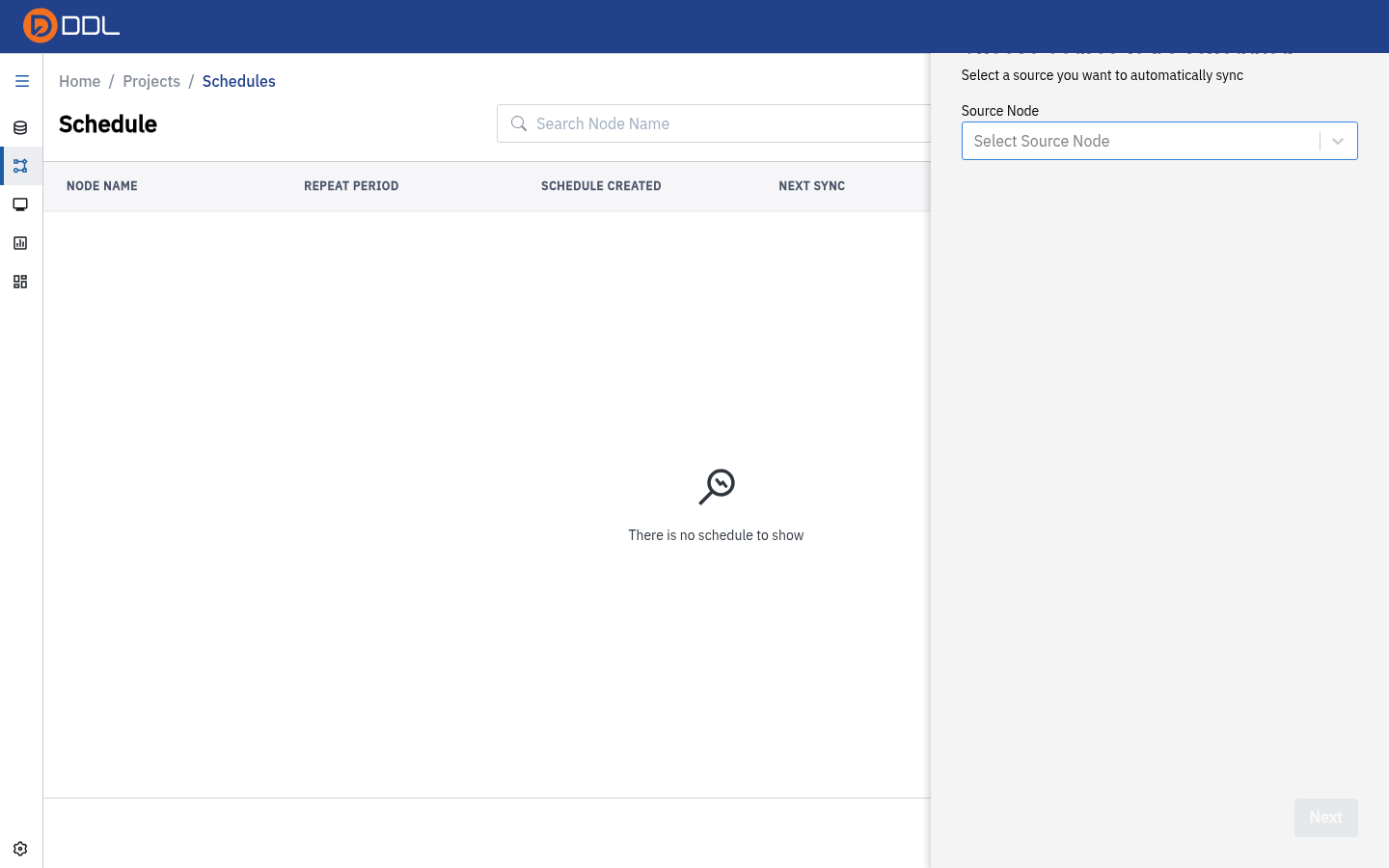 Step 1: Choose Source to be scheduled — "Select a source you want to automatically sync" — with the Source Node picker and Next .
- In Source Node, pick the node to refresh. The list contains the project's source nodes.
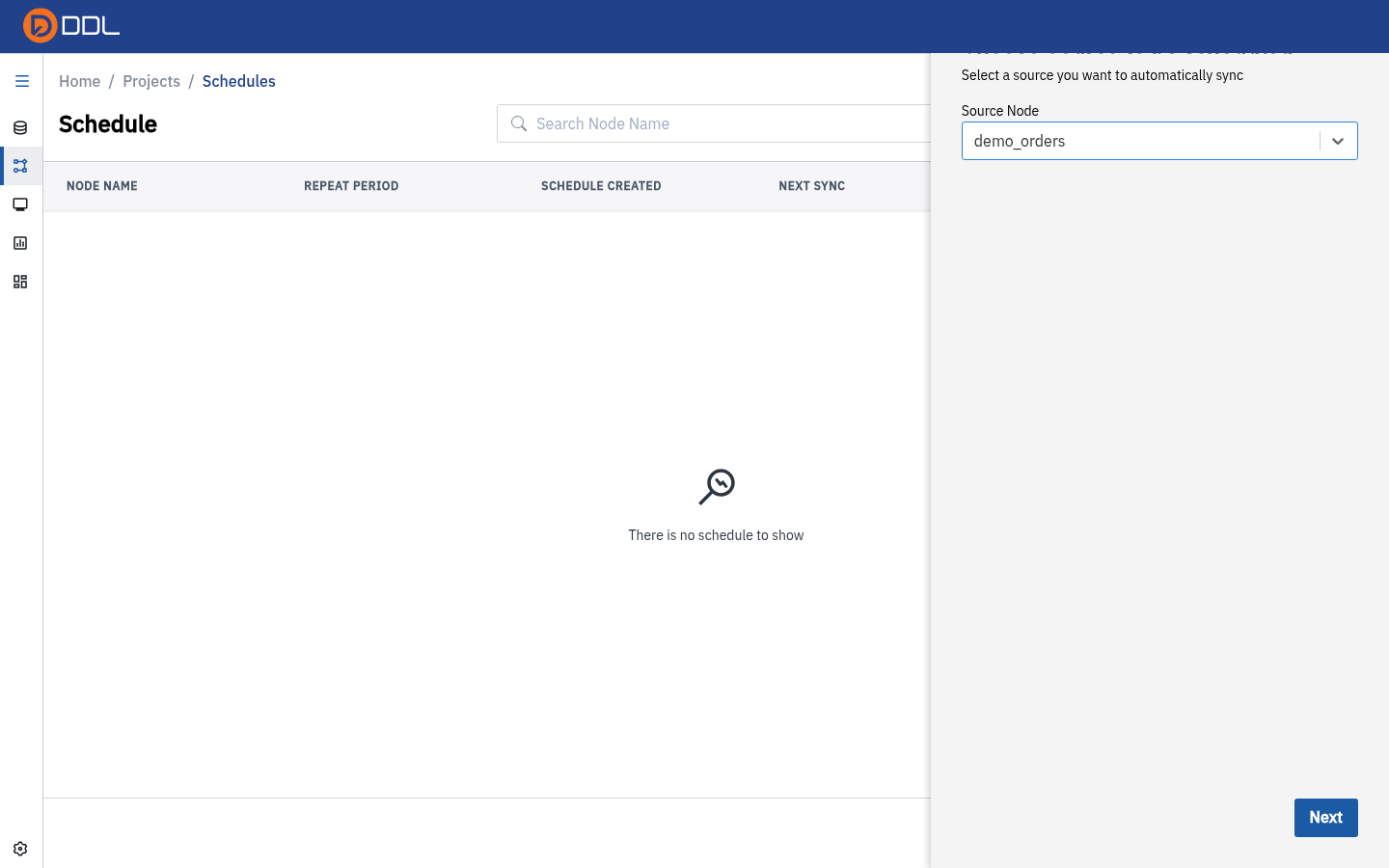 The source node chosen — here demo_orders .
- Click Next to reach Create New Schedule Config.
 Step 2: Frequency Schedule , Sync On (date), Schedule Period (time), then Back and Submit .
| Field | What it means |
|---|---|
| Frequency Schedule | How the run repeats. The picker opens on Fixed |
| Sync On | The date the schedule takes effect |
| Schedule Period | The time of day it runs |
| Back | Returns to step 1 without saving |
| Submit | Creates the schedule — from here on, DDL runs it unattended |
- Click Submit. The schedule appears in the list with its next and last sync times.
Close it properly if you change your mind
Use the panel's ✕ (or Back then close) to leave the wizard without creating anything. Until you press Submit, nothing is scheduled — the list stays exactly as it was.
Schedule sync from a node
On the canvas, open a node's panel and click the arrow beside Sync → Schedule sync. It opens the same two-step wizard with the node already selected, which is the faster route when you are editing the pipeline anyway.
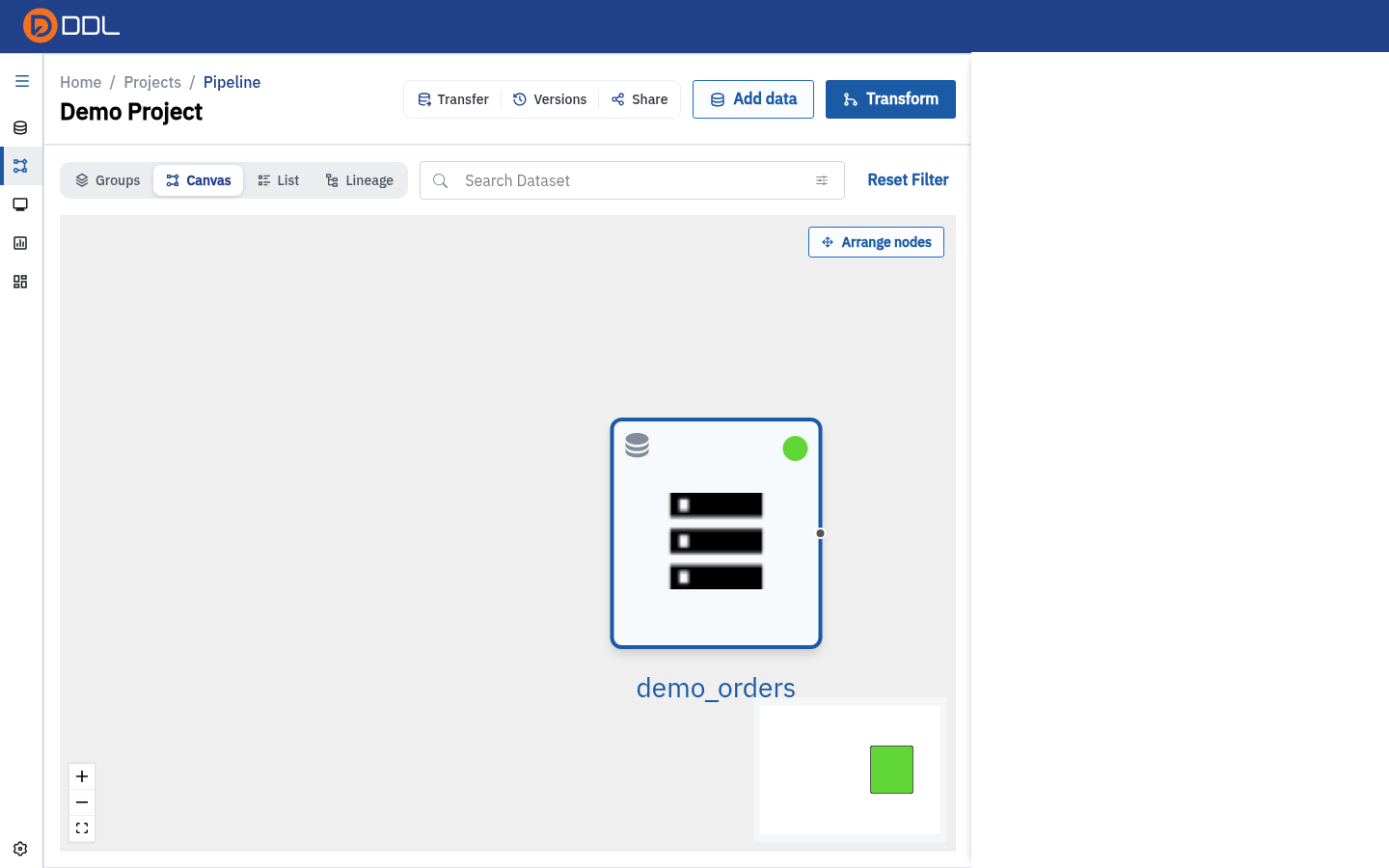 Sync now for a one-off run; Schedule sync for a recurring one.
Schedules, syncs and what actually runs
| You want… | Use |
|---|---|
| One refresh right now | Node panel → Sync ▾ → Sync now |
| A standing refresh cadence | Schedule → Add New Schedule (or Schedule sync on the node) |
| The node to follow its repository dataset automatically | Tick Auto Sync from dataset source when importing — see Pipelines (ETL) |
| Proof that a scheduled run happened | Monitoring, filtered to process type Import or Upload File |
A schedule is an unattended job
It keeps running until you delete it, and each run consumes processing time and storage. Create schedules deliberately, name their source nodes clearly, and remove them when the workstream ends.
Set the time in the window your data is ready
Sync On / Schedule Period define when DDL pulls. If your upstream warehouse finishes its overnight load at 05:30, a 05:00 schedule will quietly copy yesterday's data. Schedule after the upstream finishes, with margin.
After creating a schedule
- The NEXT SYNC column is your sanity check. If it stays empty, the schedule was never submitted.
- Runs appear in Monitoring as processes with their own status and log. If a scheduled run fails, fix the cause (usually a connection or a source permission) and let the next occurrence pick it up — or run Sync now to verify immediately. See Monitoring.
- Storage and processing consumed by scheduled runs show up in Settings → Storage Usage and Settings → Process Usage, not in the navbar meters. See the FAQ.
Next: Charts & Dashboards · Related:Pipelines (ETL), Connections, Monitoring