
Introduction
Delman Data Lab (DDL) is an AI-centred enterprise data platform: one web application where teams bring data in, prepare it, query it, schedule it, watch it run and — where the deployment allows it — ask an AI assistant to help with all of the above. Delman has worked with enterprise data since 2018, and DDL is available on-premise, so the model routes and data paths you see depend on how your organisation has configured it.
This guide explains the parts of DDL you can actually click. It was written by walking through a live deployment at https://ddl.delman.io, and every screen it describes is backed by a screenshot.
What DDL is made of
DDL markets six capability pillars. Here is where each one lives in the application:
| Pillar | Where you use it in DDL | Guide page |
|---|---|---|
| Agentic AI | The AI Assistant chat (deployment-dependent) and Settings → AI | AI & MCP integration |
| ETL & data management | The Pipeline canvas inside a project: Add data, Transform, Sync | Pipelines (ETL) |
| AI-assisted pipeline development | The SQL Query workbench, where a query can be saved as a node | SQL Query |
| Data Foundation | The account-wide Data Repository of shared datasets | Data Repository |
| Data Observability | Monitoring, global and per-project process lists with logs | Monitoring |
| MCP integration | Settings → AI → MCP Integration: tokens and client setup | AI & MCP integration |
Around those pillars sit the everyday surfaces: projects, connections to external systems, schedules, charts and dashboards, and account settings.
Five concepts everything else builds on
Learn these five words and the rest of DDL becomes predictable.
- Project — the working container. Everything you build (pipeline, SQL queries, connections, schedules, monitoring, charts, dashboards) lives inside one project, reached from
/projects/<id>. Projects are listed at/projectsand shared through the Share dialog. See Projects. - Dataset — a file or table registered in the account-wide Data Repository (
/data-repository). A dataset belongs to the account, not to a project: upload once, import into as many projects as you like. See Data Repository. - Node — any box on a project's pipeline canvas: an imported dataset, a source from an external connection, or the output of a transform or SQL query. Nodes have a layer (Source / Transform / Transfer …), a status, a lineage and a run history. See Pipelines (ETL).
- Connection — a saved set of credentials and settings pointing at an external system (PostgreSQL, Google Sheets, BigQuery, Amazon S3, …). Connections are registered per project under Connections, split into Import and Export tabs. See Connections.
- Process — one executed unit of work: a SQL query, an import/sync, a transform, an export, a transfer, an upload. Every process is recorded in Monitoring with a status, a duration and a technical log. See Monitoring.
Data Repository (dataset)  ──import──▶  Project ▸ Pipeline canvas ▸ node
External system            ──connection──▶ node ──transform / SQL──▶ node
Every step above           ─────────────────────────────────────────▶ process (Monitoring)
How AI fits in, and where a human stays in charge
DDL's positioning is deliberately plain about this: bring business questions, selected data and team definitions into AI-assisted workflows, explore answers and proposed next steps, then let people review before changes are made. The workflow is three steps:
- Define — state the business question or the data-preparation goal.
- Ground — choose the information the task may use, plus the definitions that make an answer judgeable.
- Review — inspect the answer or plan; approve, revise or decline before it is carried out.
AI output can be wrong. Model routes, data scope and permissions depend on each organisation's configuration, so the review step is part of the product, not an optional extra.
Two consequences you will notice while reading this guide:
- The in-app AI Assistant is deployment-dependent. It appears only when the server behind your DDL instance is configured (the application says so itself:
AI_ASSISTANT_URL is not set for this DDL, so the AI Assistant is hidden). On instances without it, there is no chat button and no chat panel — see AI & MCP integration for what is always available instead. - AI reach is bounded by switches you can see. A project-level Sensitive data (AI) flag and account-level policy switches decide what may be sent to a model provider at all. Nothing is quietly shared.
The shape of the application
| URL area | What lives there |
|---|---|
/home | Landing page after login: usage meters, onboarding banner, recent projects and datasets |
/projects, /projects/<id>/… | The project list, then one workspace per project (Pipeline, Connections, SQL Query, Schedule, Monitoring, Charts, Dashboards, Project Settings) |
/data-repository | Account-wide datasets (shared by all projects) |
/monitoring | All processes across the projects you can see |
/settings/ai-integration | AI: MCP Integration, AI Agent, Activity, AI Ops |
/settings/storage-usage, /settings/process-usage | Usage reporting |
/settings/appearance, /settings/change-password | Personal settings |
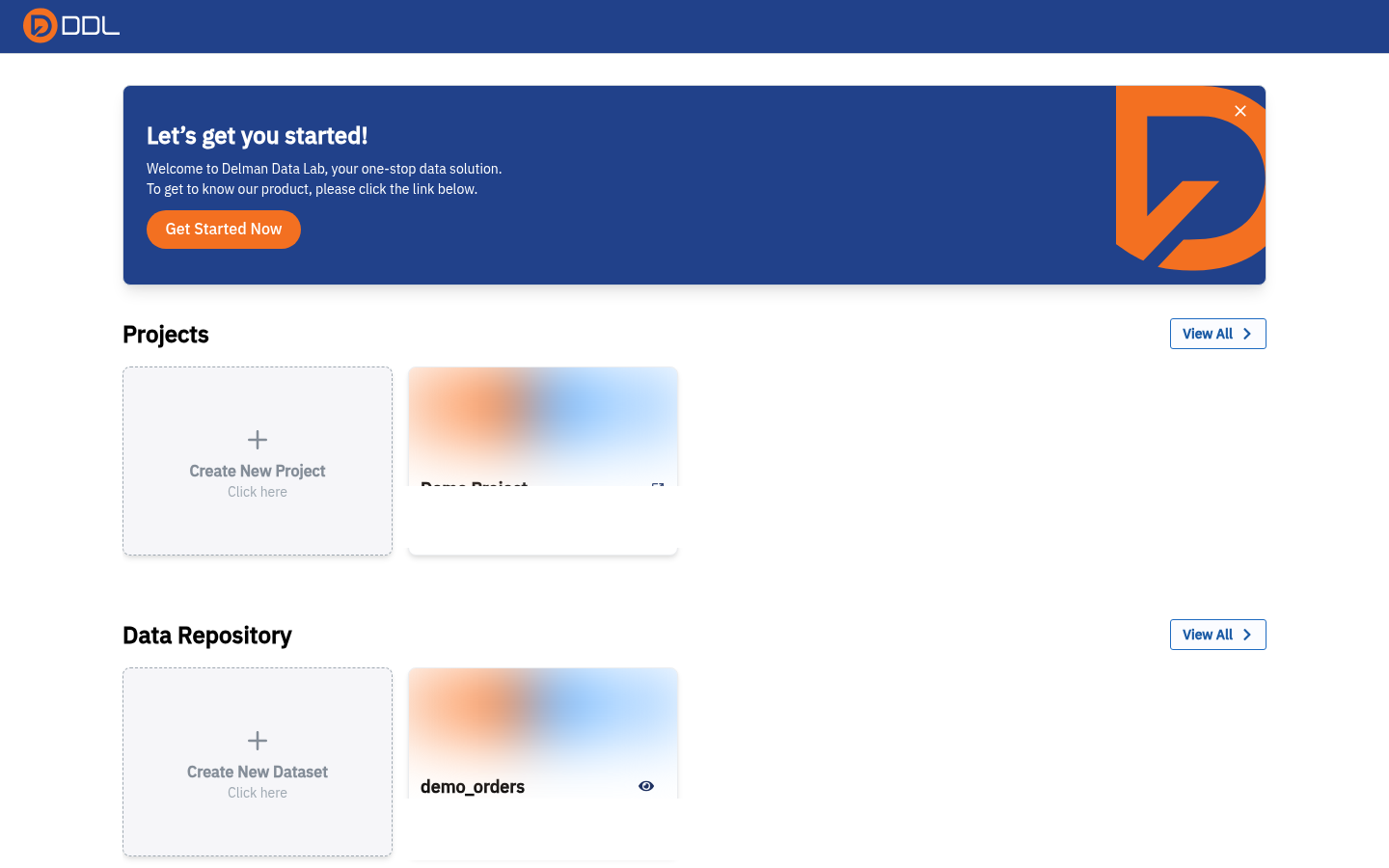 The home dashboard once a project and a dataset exist — the two sections you will spend most of your time in, with View All links to Projects and Data Repository .
The navbar is your map
The top navbar is present on every screen: the DDL logo returns you to the landing page, the Storage and Processing meters show live usage, and the profile menu (your name and role badge) holds Settings, Monitoring, Report Problems and Logout. See Getting started.
What this guide does not cover
DDL contains screens that are outside the scope of a user guide: user and team administration, roles, and billing. Billing is not deployed in the instance this guide was written against (/settings/billing returns the 404 page), and user management is an administrator concern. If you need those, ask your DDL administrator.