
Projects
Purpose: a project is the working container in DDL. Connections, the ETL pipeline, SQL queries, schedules, monitoring, charts and dashboards all live inside one project, and access is granted per project. This page covers finding projects, creating them, naming them, sharing them and reading their version history.
Find a project
Projects live at /projects, reachable from the Projects → View All link on the home dashboard or by clicking the DDL logo and navigating there.
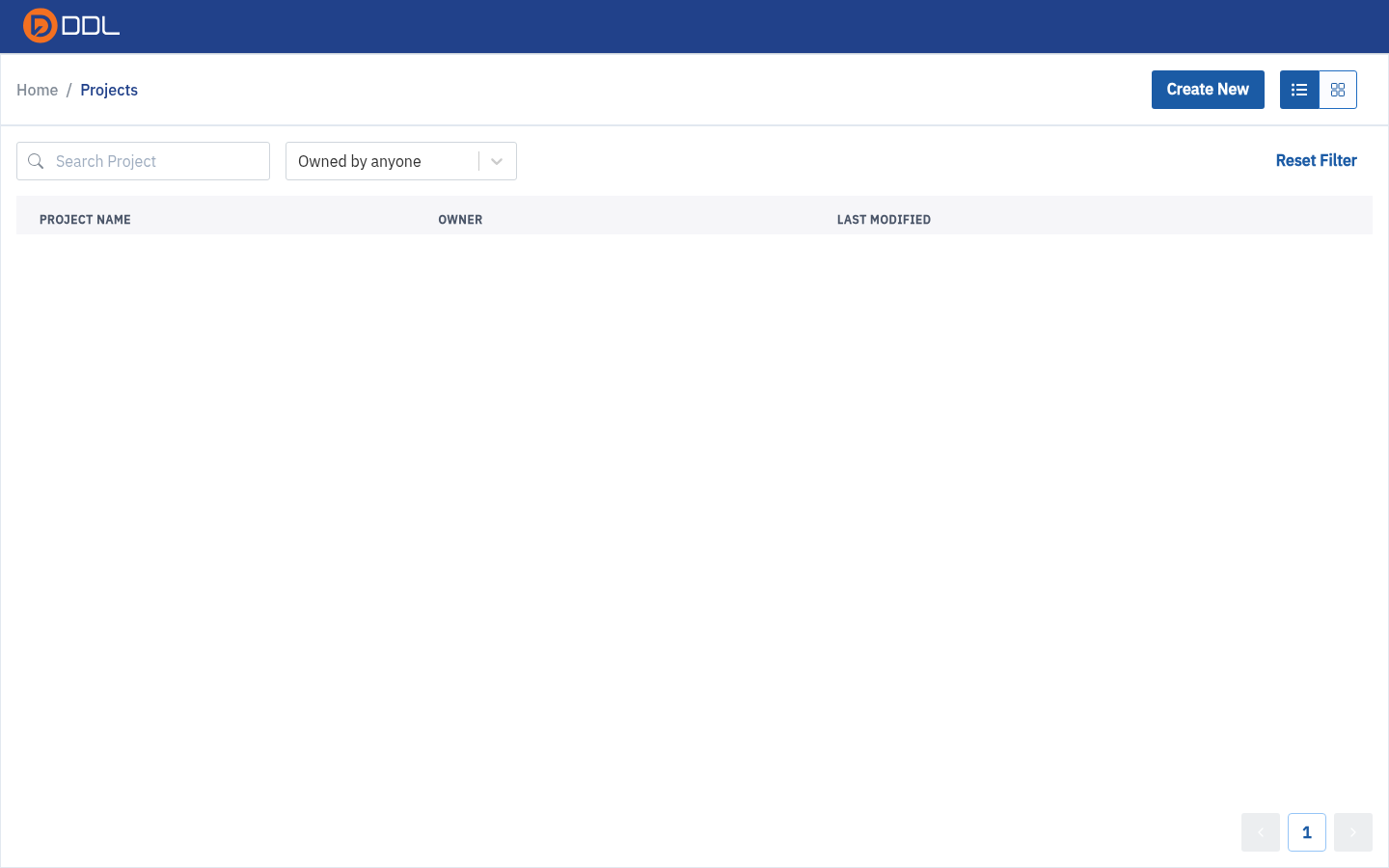
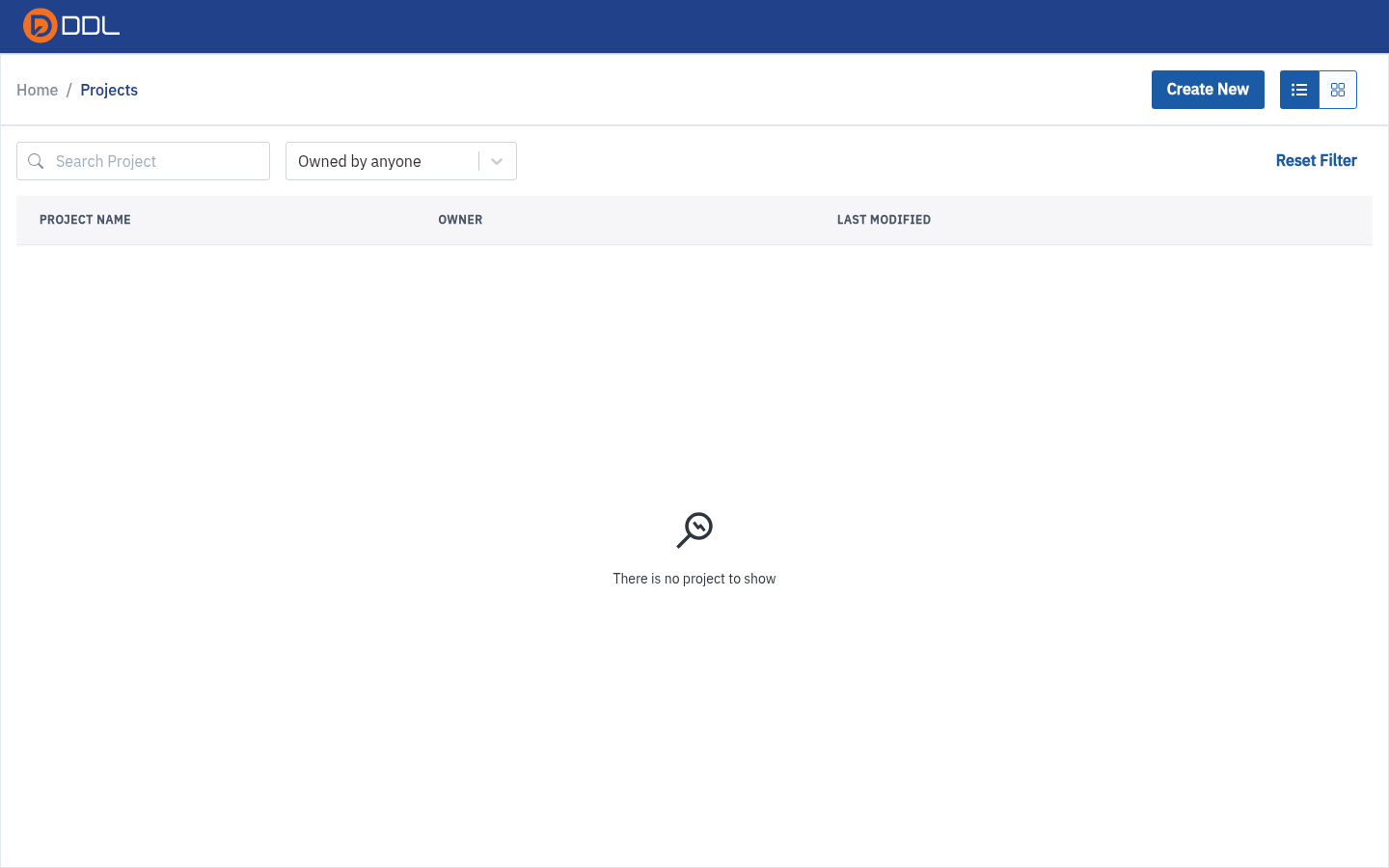 The projects list in table layout, with search, the owner filter and the Create New button.
| Control | What it does |
|---|---|
| Create New | Creates a project immediately (see the warning below) |
| Table / grid switch | Toggle between the row table and card grid |
| Search Project | Filter by name |
| Owned by anyone | Owner filter — narrow the list to projects owned by a specific person |
| Reset Filter | Clear search and owner filter at once |
| Table columns | PROJECT NAME · OWNER · LAST MODIFIED |
| Pagination footer | Page number and page controls |
An empty account shows a magnifier icon and the message "There is no project to show".
Create a project
Create New has no dialog
DDL creates the project the moment you click Create New — with an auto-generated name (Project 1, Project 2, …) — and navigates straight into its Pipeline canvas. There is no name field to fill in first. Rename it immediately (next section) or you will be maintaining a pipeline called Project 7.
- Go to
/projects. - Click Create New.
- You land on the new project's Pipeline canvas, which briefly shows "Loading…".
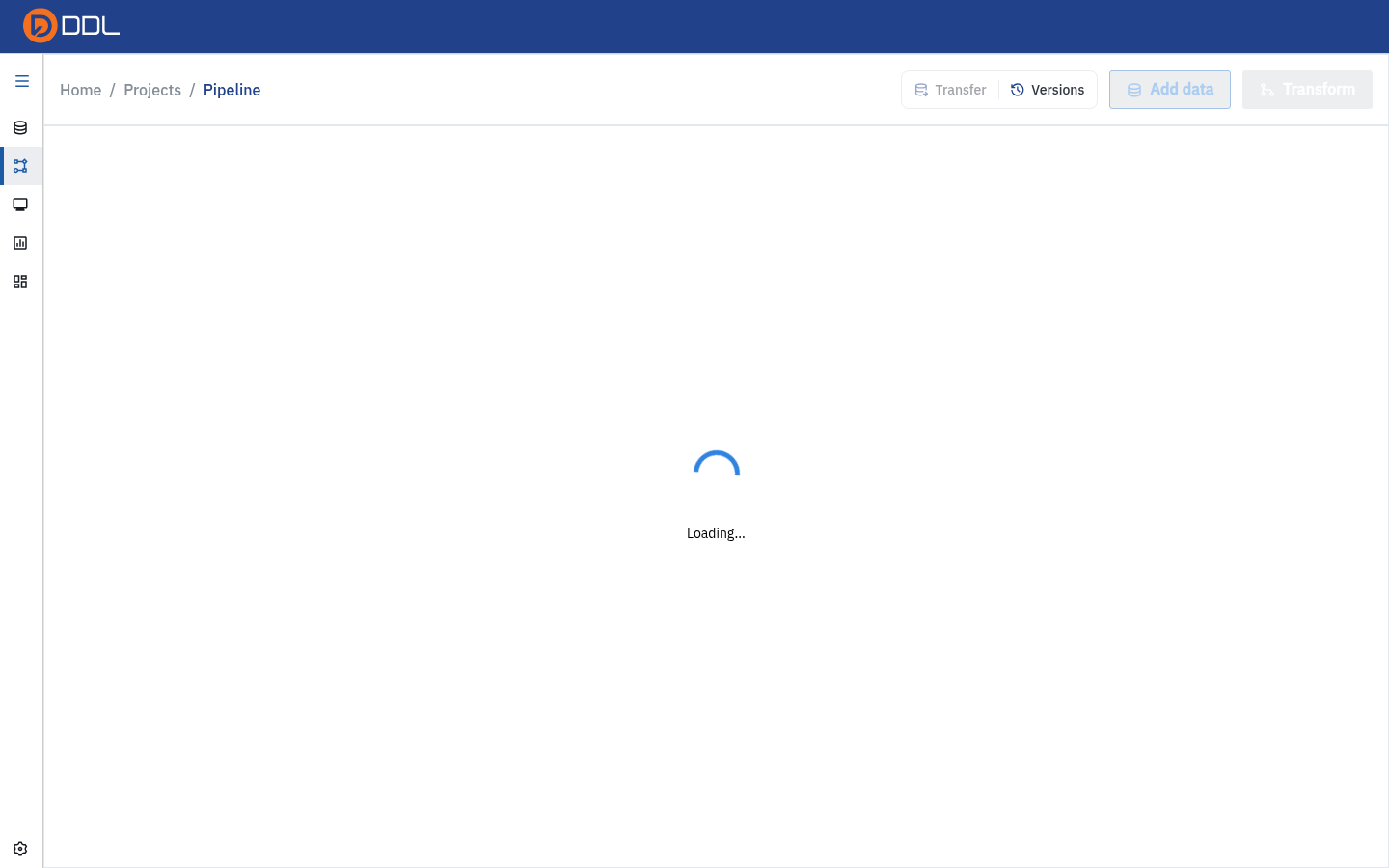 The redirect after one click — you are already inside the new project.
- Return to
/projectsand you will see the new row.
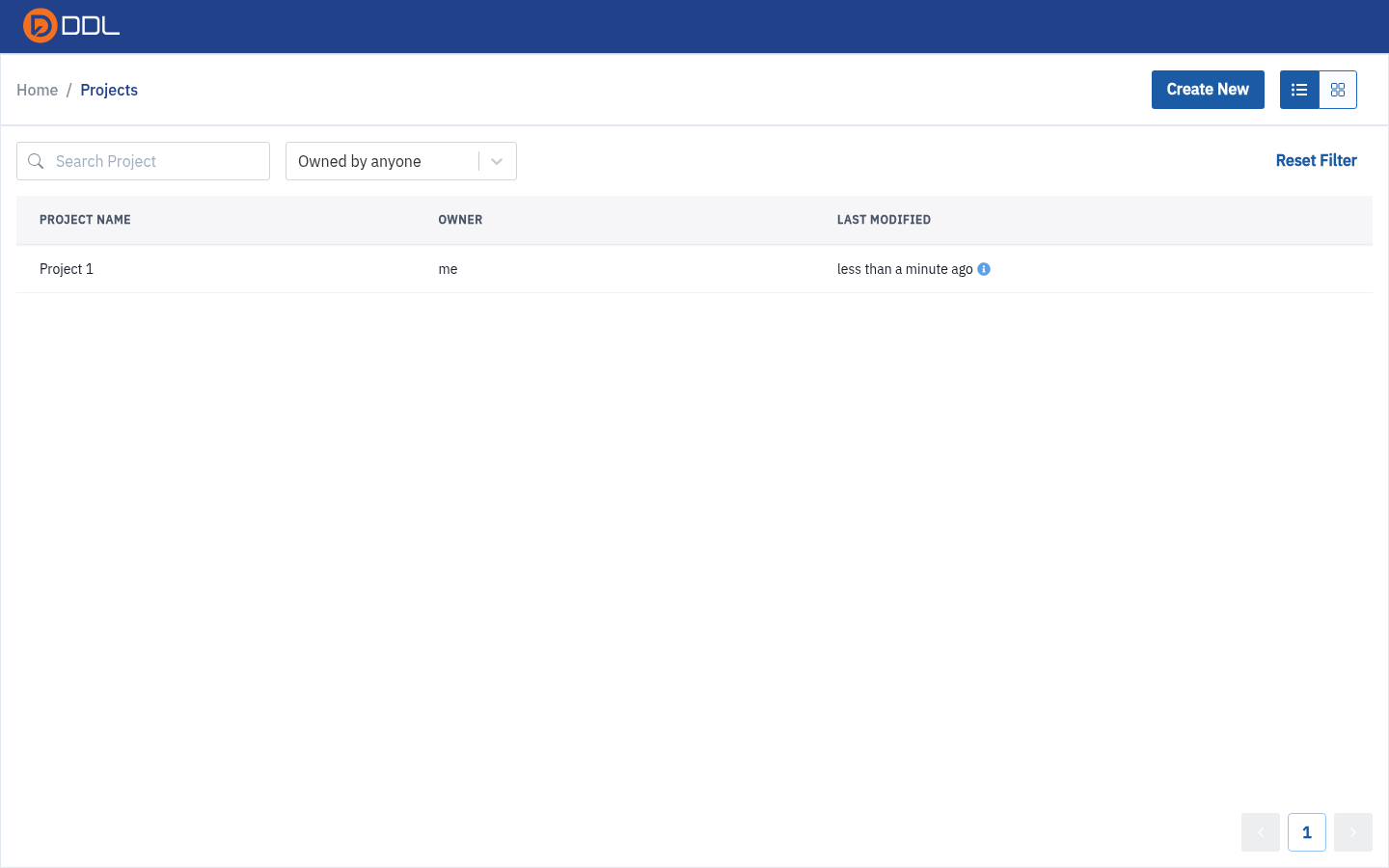 The auto-created project appears with owner me and a "less than a minute ago" timestamp.
TIP
The dashed Create New Project / Click here tile on the home dashboard does exactly the same thing in one click. Both paths create instantly, so use the tile only when you mean it.
Rename a project (Project Settings)
- Open the project and click Project Settings in the left rail (it is pinned to the bottom).
- The page header reads Project Settings — "Review or change various configuration for your project".
- Click the Change Project Name row.
- In the modal, replace the pre-filled name and click Save. The header, breadcrumb and projects list all update.
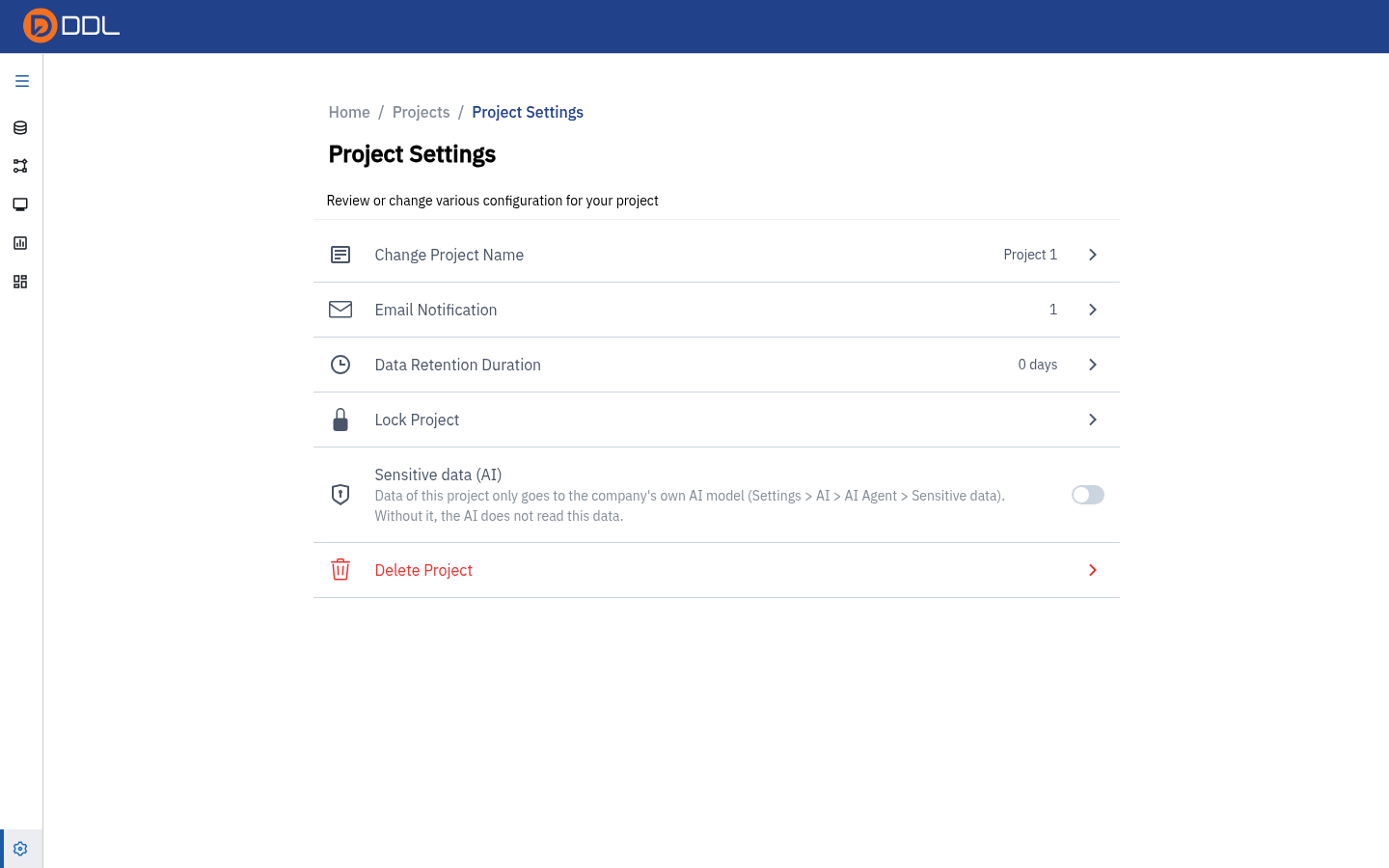 The Project Settings page. Rows: Change Project Name, Email Notification, Data Retention Duration, Lock Project, Sensitive data (AI), Delete Project.
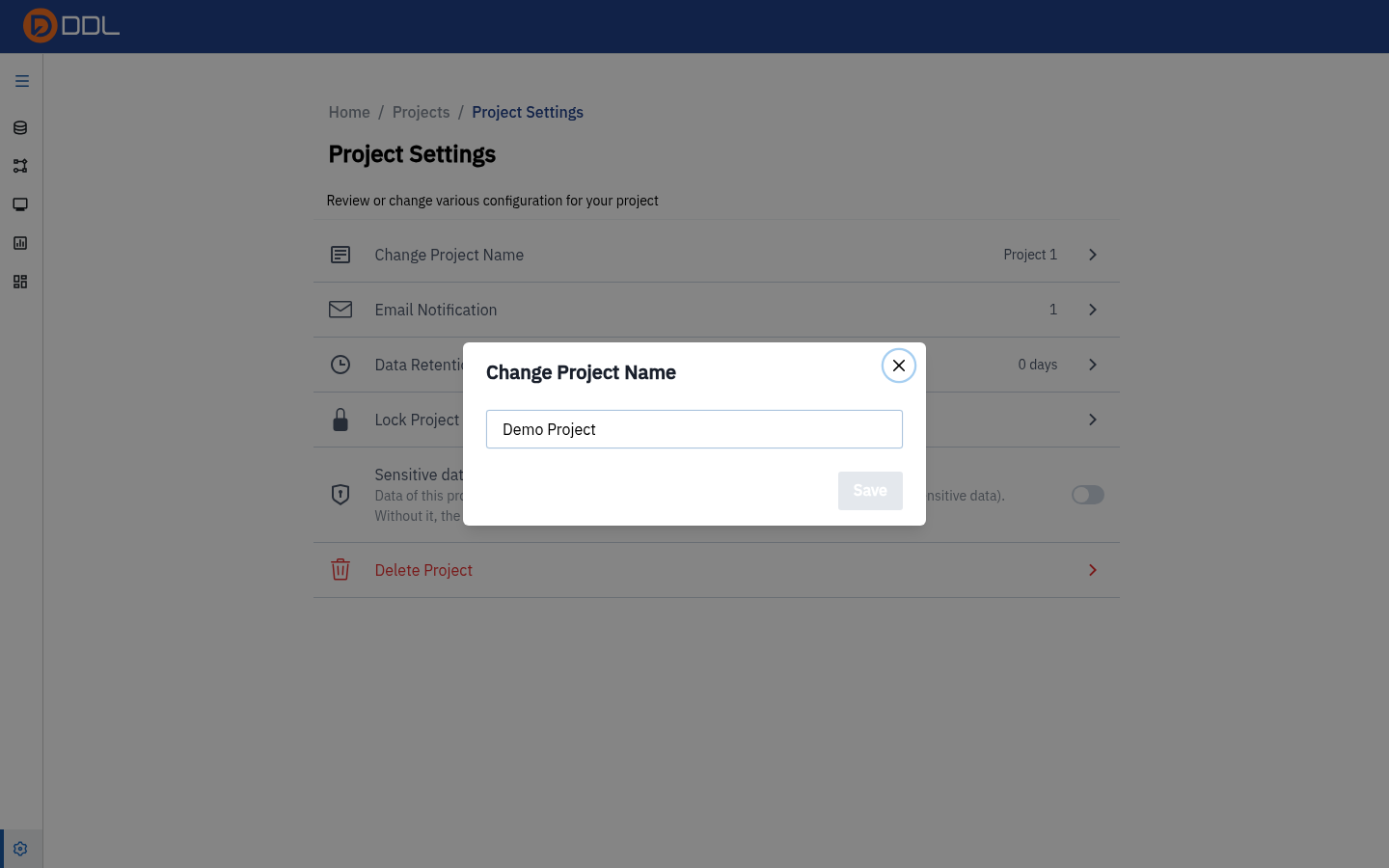 The Change Project Name modal with the new name typed in.
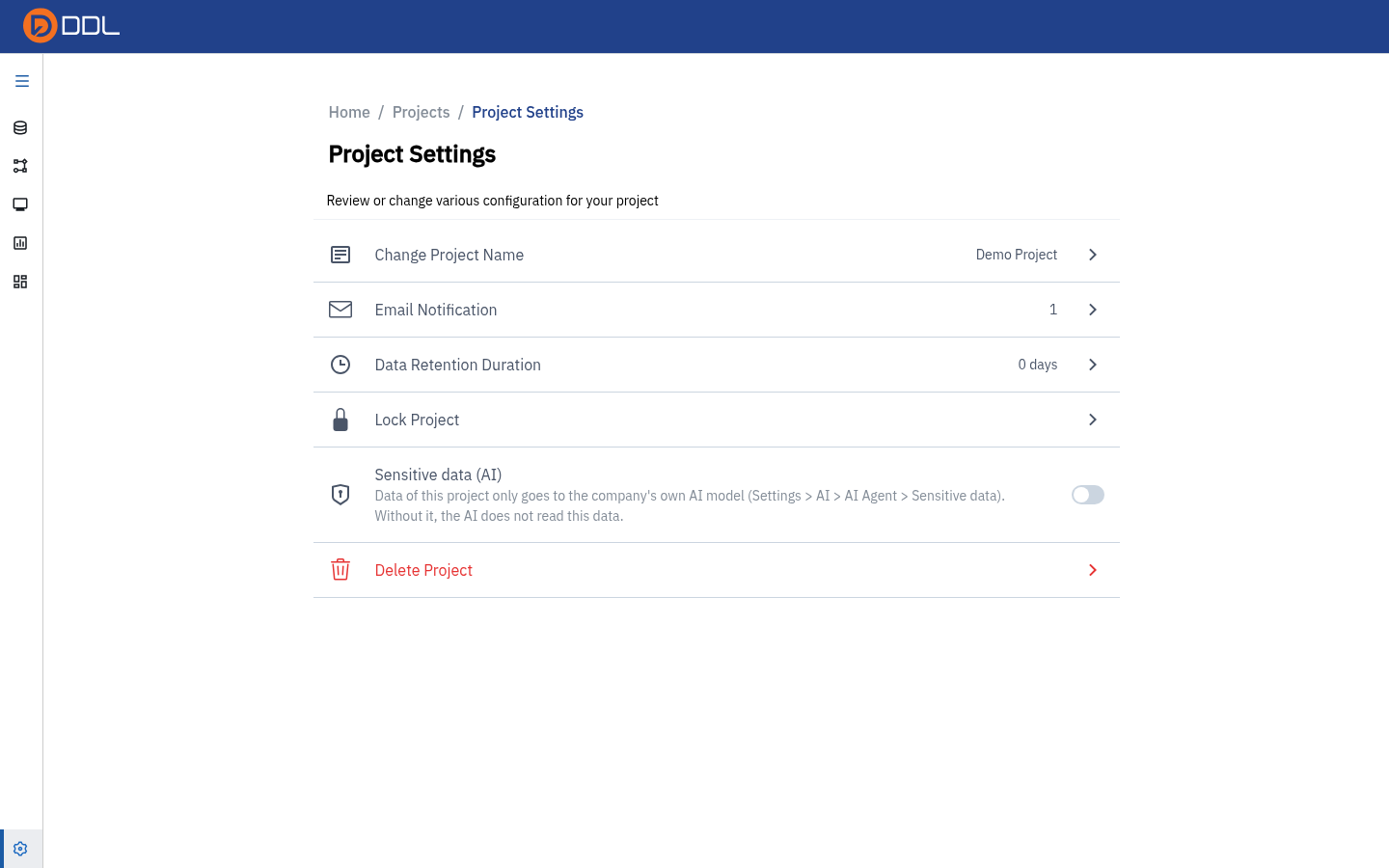 Confirmed — the project header now shows the new name.
What the other rows do
| Row | Behaviour |
|---|---|
| Email Notification | Counter of configured e-mail notifications for this project |
| Data Retention Duration | Retention window, shown in days (e.g. 0 days) |
| Lock Project | Prevents edits to the project |
| Sensitive data (AI) | Switch. On-screen wording: "Data of this project only goes to the company's own AI model (Settings > AI > AI Agent > Sensitive data). Without it, the AI does not read this data." Leave it off unless an internal model is configured — see AI & MCP integration |
| Delete Project | Destructive and irreversible. There is no undo; check who you shared the project with first |
The project sidebar
Inside a project, the left icon rail is the navigation. Click the hamburger to expand it and see labels.
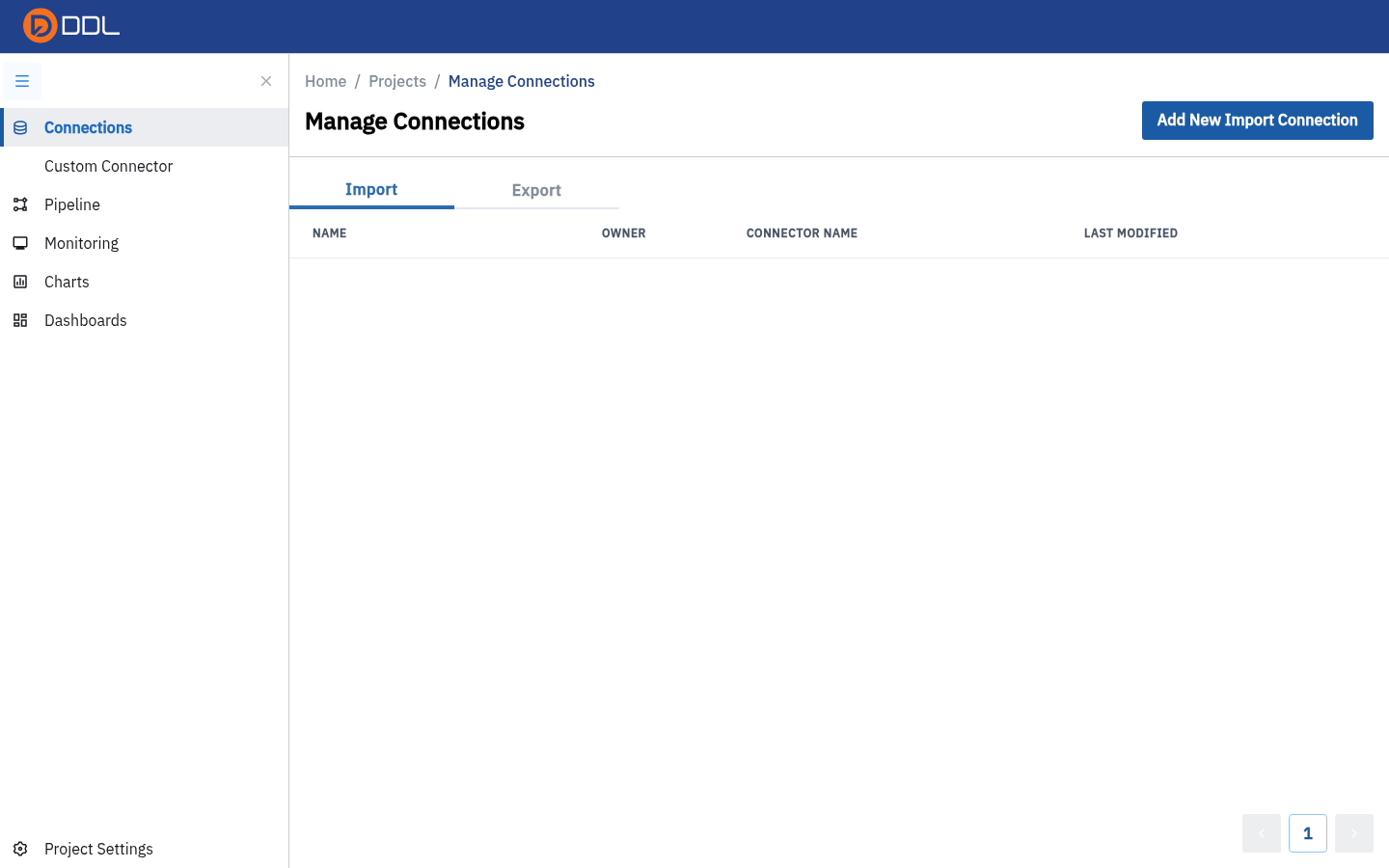 The full tab list: Connections, Custom Connector, Pipeline, SQL Query, Schedule, Monitoring, Charts, Dashboards and (pinned at the bottom) Project Settings.
| Tab | What it opens | Guide page |
|---|---|---|
| Connections | Import/export connections for this project | Connections |
| Custom Connector | Connectors your organisation defined | Connections |
| Pipeline | The ETL canvas — this is the bare project URL | Pipelines (ETL) |
| SQL Query | The SQL workbench | SQL Query |
| Schedule | Recurring syncs | Schedules |
| Monitoring | Processes for this project | Monitoring |
| Charts | Saved charts | Charts & Dashboards |
| Dashboards | Dashboard collection | Charts & Dashboards |
| Project Settings | Everything in the section above | this page |
Two tabs appear only in context
Custom Connector is rendered while you are in the Connections area, and SQL Query / Schedule appear on pipeline-related views. If a tab seems missing, expand the rail and click the nearest sibling — the rail is contextual, not broken.
Share a project
- On the Pipeline toolbar click Share.
 Share Project: your current team and role are shown at the top, Members and Roles tabs sit below it, and Add New Access grants access.
- Read the line under the heading — it tells you which Team and Role you are sharing as.
- Use Members or Roles tabs, the search box, and Add New Access to grant access.
WARNING
Sharing is how other people see your nodes, SQL history and connections. Grant access deliberately, and revoke it when a collaboration ends. An empty list simply means nobody else has been added yet — the modal then shows "There is no Member shared with this share project."
Versions (project history)
Versions on the Pipeline toolbar opens the project's version history at /projects/<id>/history. It answers "what did this node look like yesterday?".
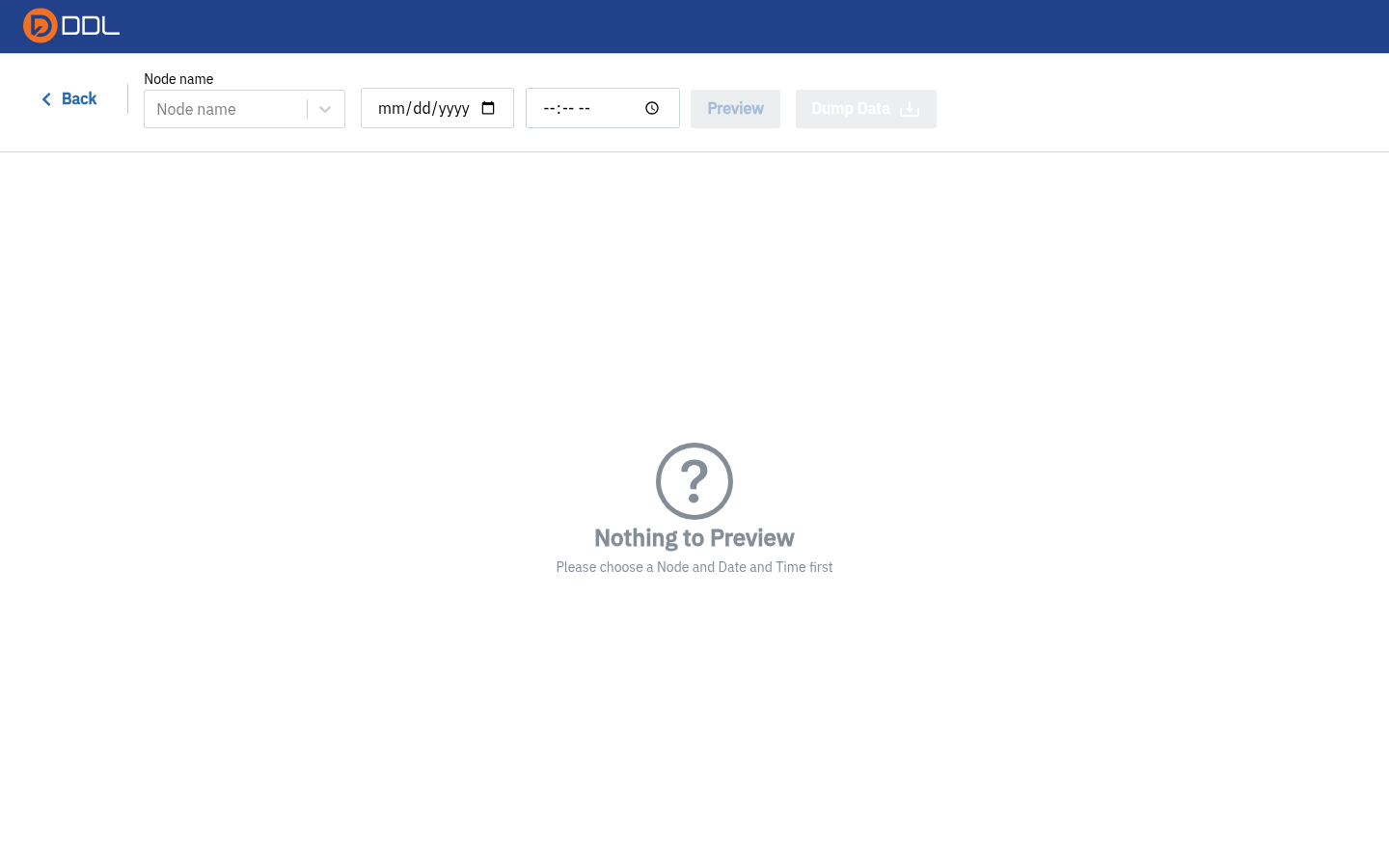 The Versions page in a project with no history yet.
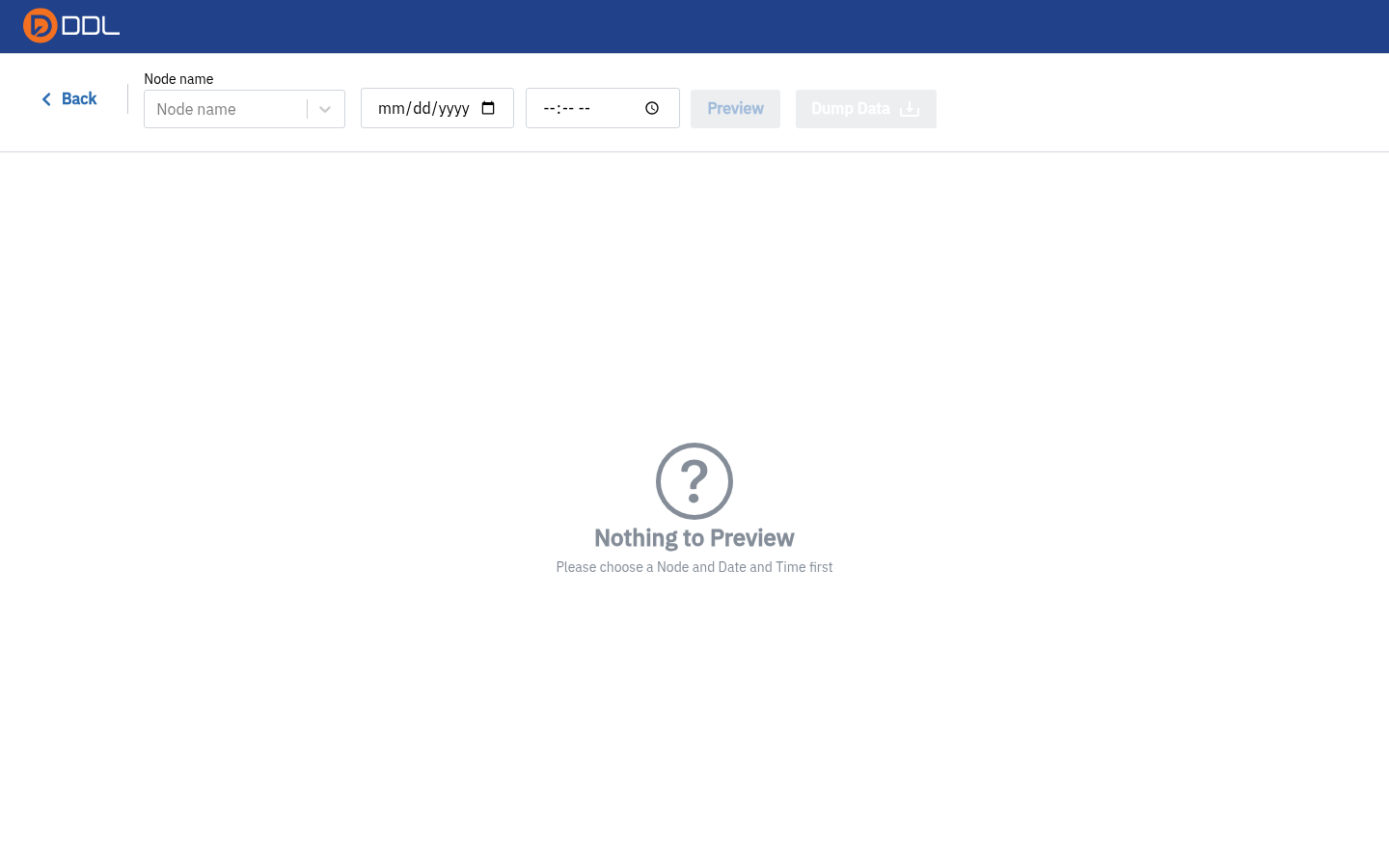 The controls: a Node name dropdown, a date and a time, then Preview and Dump Data — with the empty state "Nothing to Preview".
- Open the Node name dropdown and pick a node.
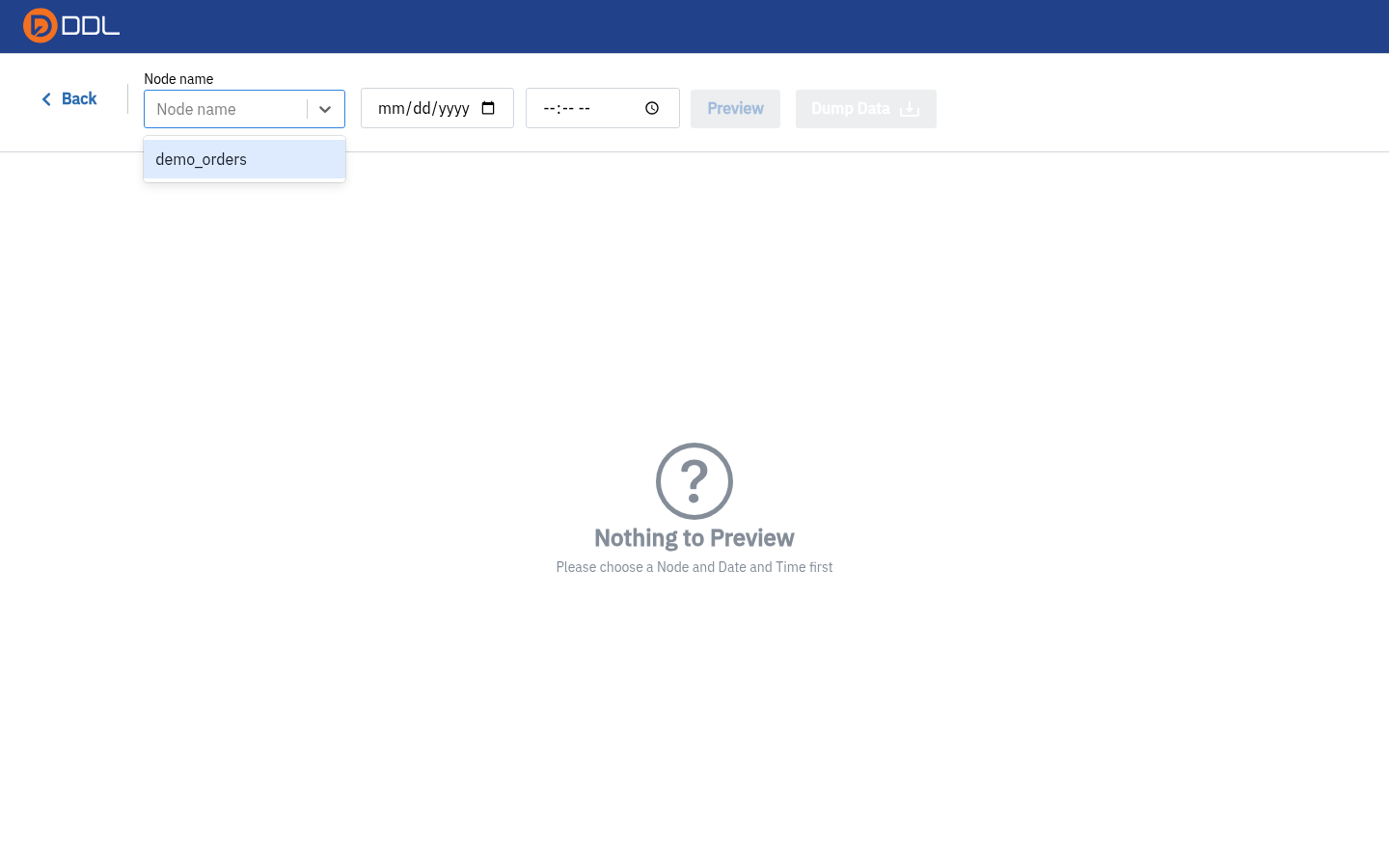 The dropdown lists the project's nodes.
- Choose a date and time, then click Preview to inspect that version.
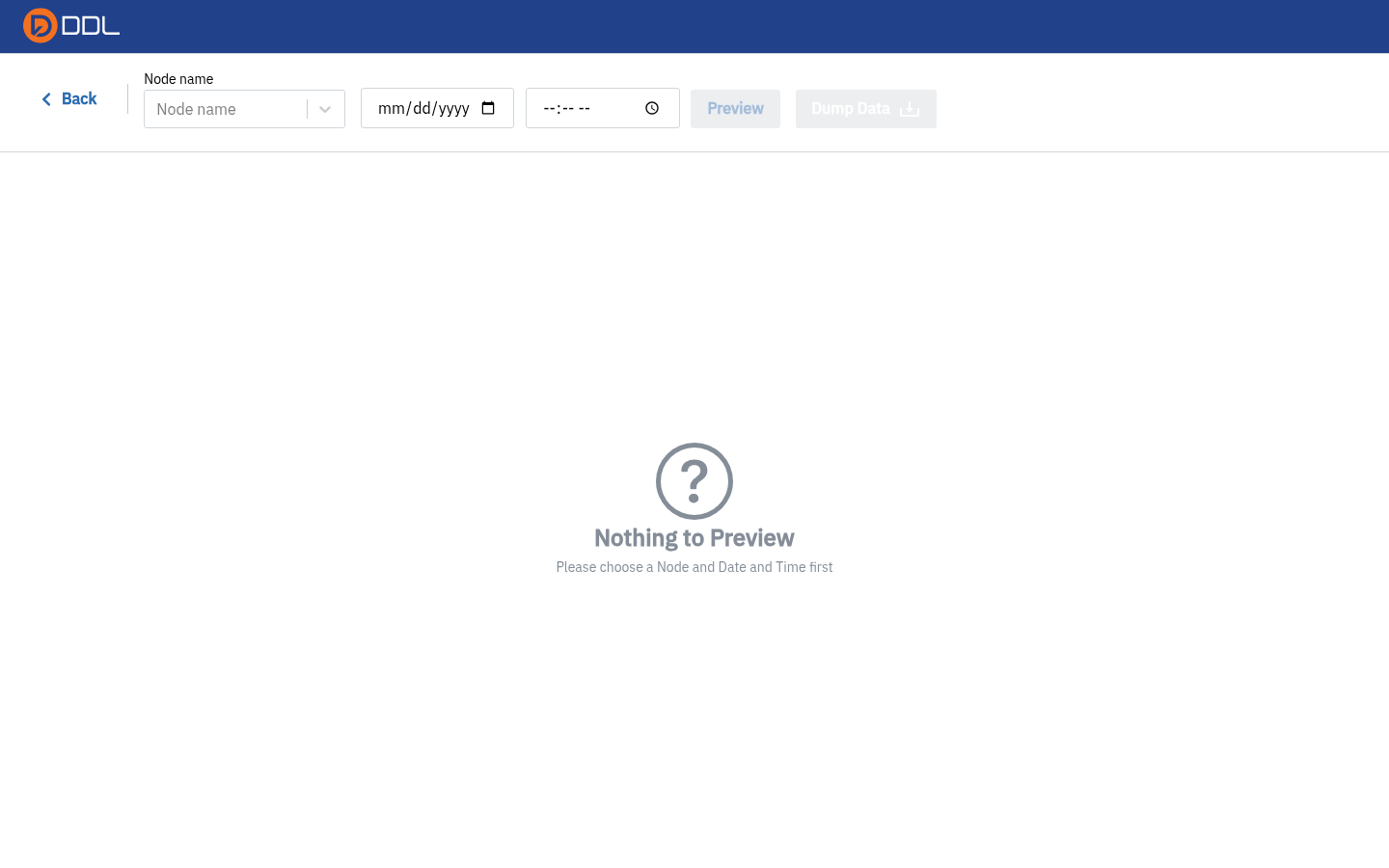 Node and timestamp selected, ready to preview.
Dump Data is an export
Dump Data starts a real export/backup job for that version. Use it when you deliberately want the data out of DDL, not as a "view" button.
Housekeeping tips
- Name projects like datasets, not like tickets. The name appears in the breadcrumb, in Monitoring's PROJECT NAME column and in aggregate usage reports.
- One project per workstream. Storage Usage and AI Ops break usage down per project, so a project that mixes three unrelated jobs produces numbers nobody can read.
- Check the list before creating. Aggregate pages (Storage Usage, Process Usage, AI Ops) may show projects owned by other people even when
/projectsfor your account lists only your own. See the FAQ.
 A tidy account: one project, clearly named.
Next: Data Repository · Related: Pipelines (ETL), Monitoring