
Data Repository
Purpose: the Data Repository (/data-repository) is the account-wide landing zone for raw files and datasets. It is not project-scoped: upload a file once, then import it into any project you can access. Uploaded files become tables with auto-detected column types.
You use it to…
- land CSV / Excel / JSON / Parquet extracts before any pipeline exists
- share a reference table between projects instead of duplicating it per project
- eyeball the rows and column types of a dataset before you build on top of it
The list
Two layouts, switchable at any time. Both show the same content.
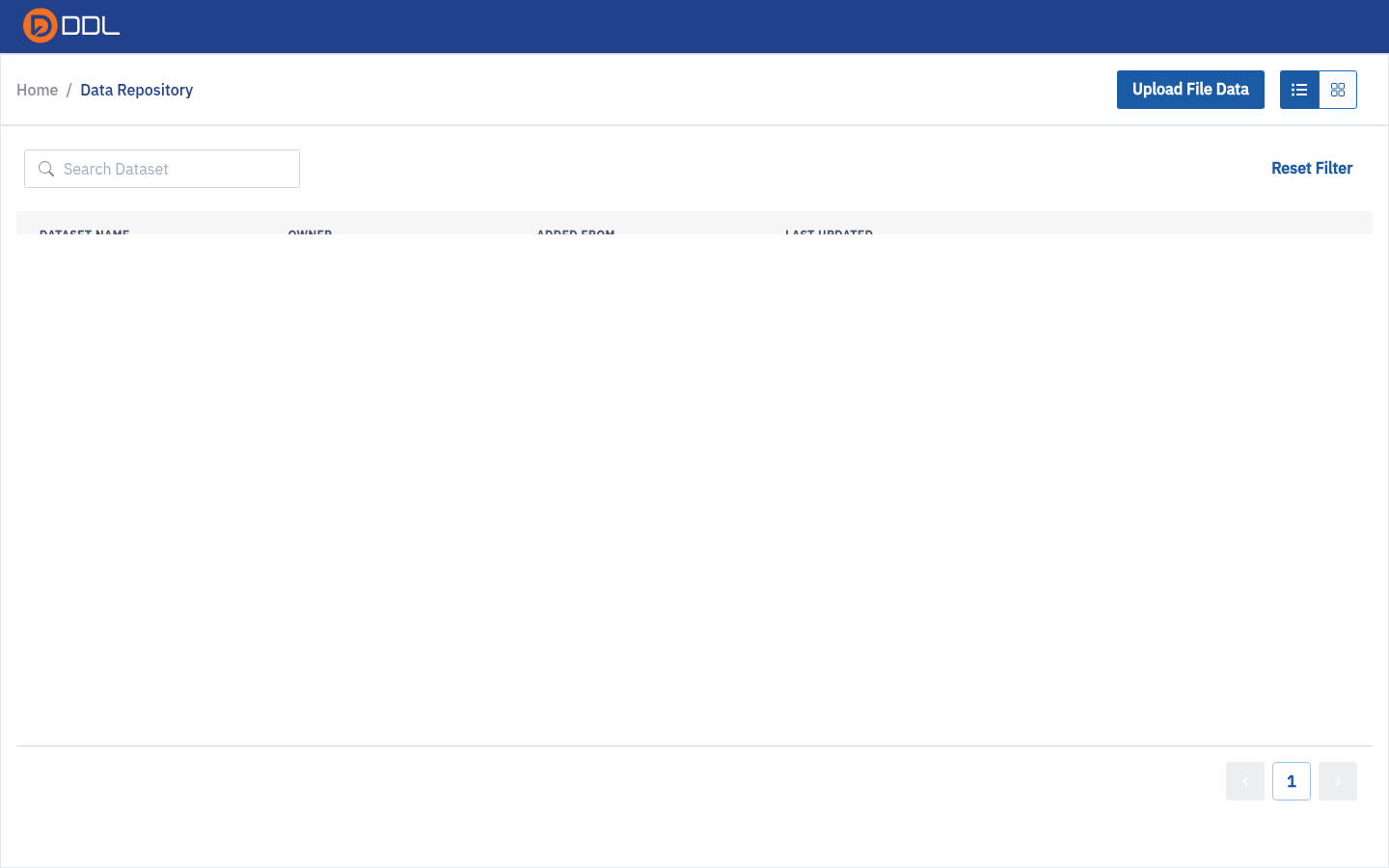
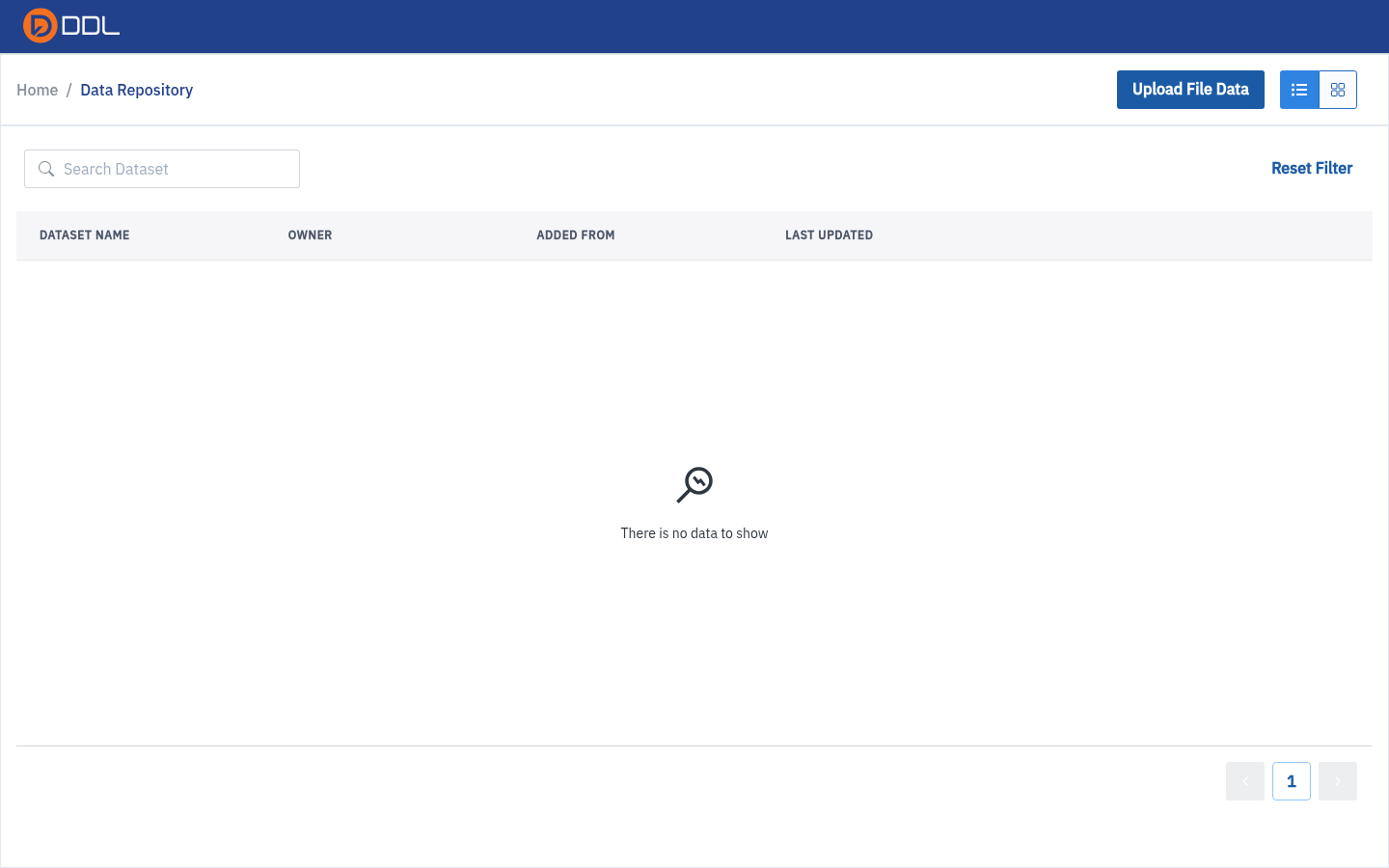 Table layout: DATASET NAME · OWNER · ADDED FROM · LAST UPDATED and a See Details action per row.
 Grid layout: one card per dataset with its last-update timestamp.
 The grid after an upload — the card is the entry point to the preview page.
| Control | Behaviour |
|---|---|
| Upload File Data | Opens the create panel; the URL becomes /data-repository?create_new=true |
| Table / grid switch | Layout only — no difference in data |
| Search Dataset | Filter by name. Ctrl+K focuses this box (there is no command palette) |
| Reset Filter | Clears the search |
| See Details | Opens the read-only preview page for that dataset |
| Pagination footer | Page controls |
Before anything is uploaded, the page shows "There is no data to show".
The home dashboard has the same panel
The Create New Dataset / Click here tile in the Data Repository section of /home opens the identical upload panel.
Upload a file
- Click Upload File Data. A side panel slides in from the right — note that it is a panel, not a modal, so your list stays visible behind it.
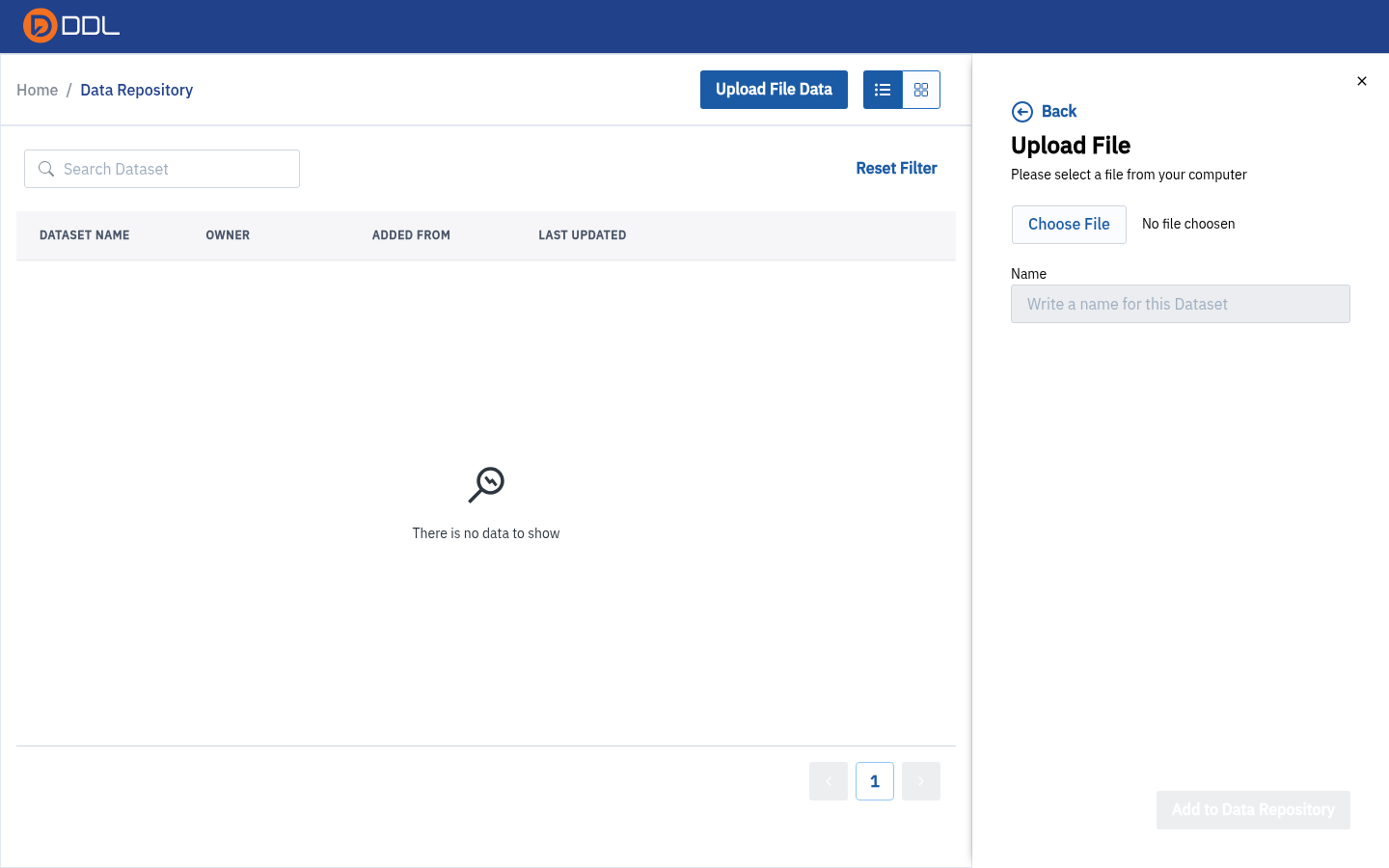 "Please select a file from your computer", the Choose File button, a Name field ("Write a name for this Dataset"), and Add to Data Repository *. Back closes the panel.
Click Choose File and pick your file. Supported formats:
Format Accepted as CSV .csvExcel .xlsx,.xlsJSON application/JSONParquet .parquetThe panel shows the attached file and prefills Name from the file name.
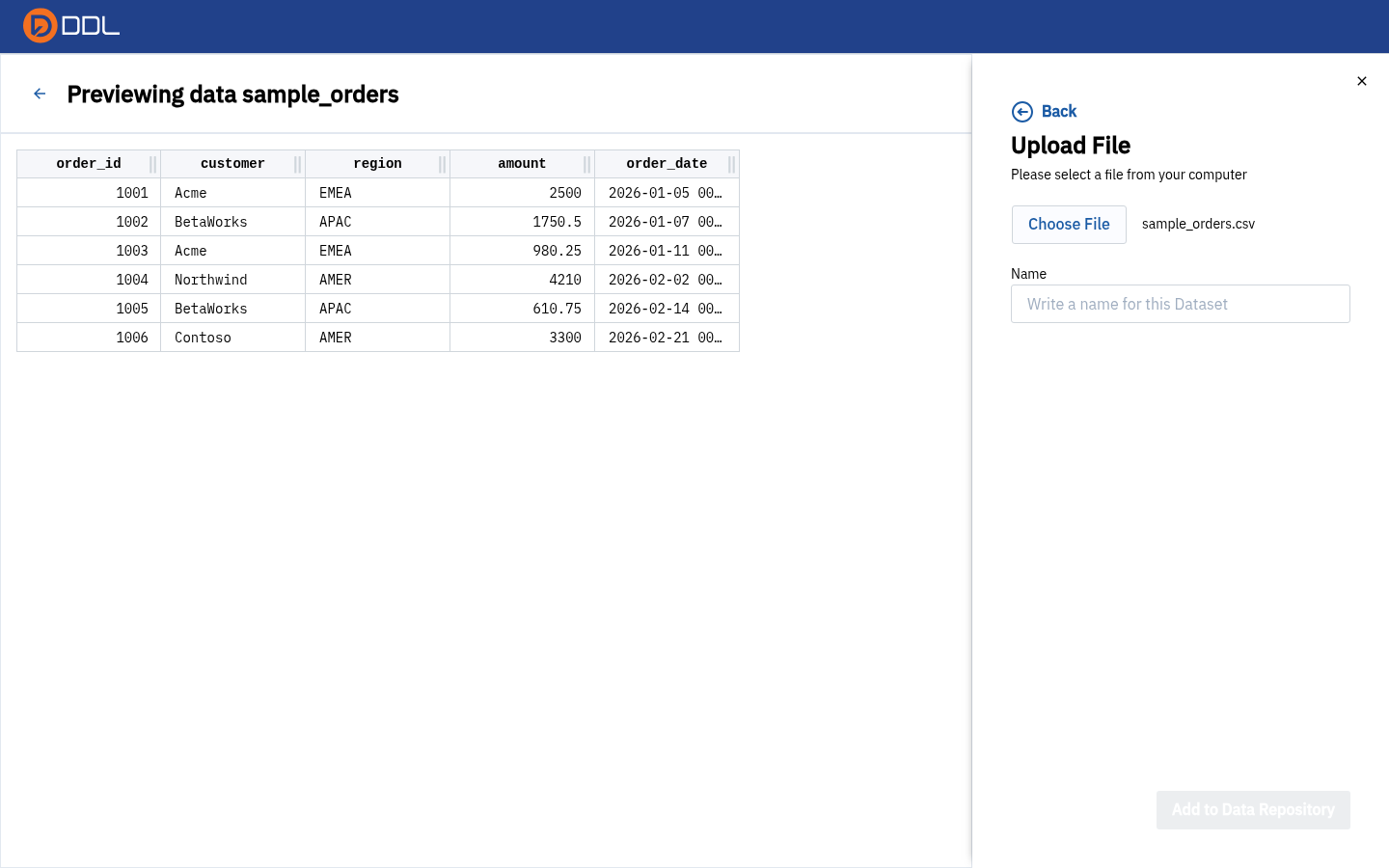 The file is attached and the dataset name is auto-filled.
- Edit Name to the identifier you want to use in SQL and pipelines. This becomes the node name when a project imports the dataset.
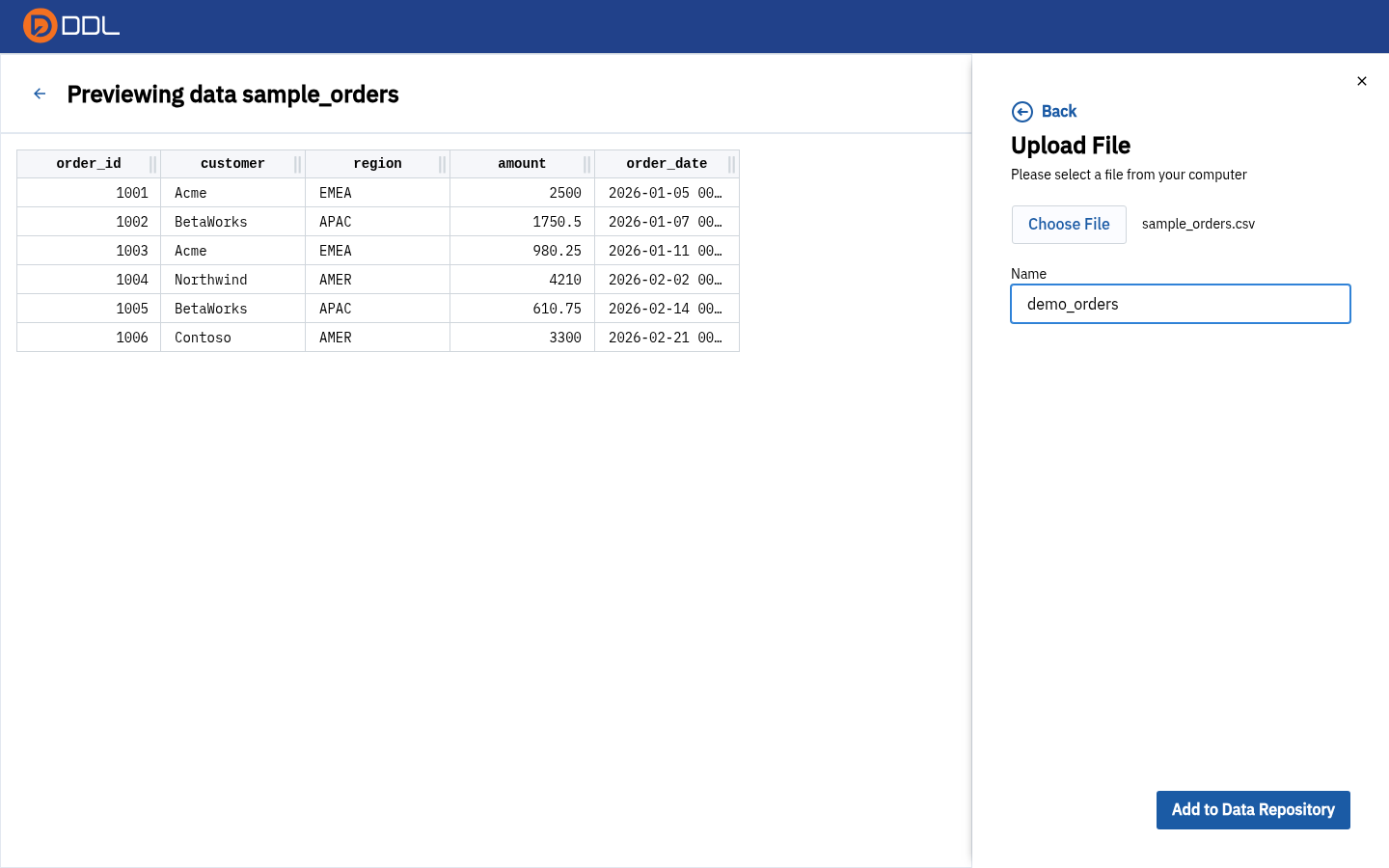 Renaming the dataset before committing.
- Click Add to Data Repository. The panel closes and the row appears.
 ADDED FROM reads File Upload for anything uploaded this way.
Naming an upload is a real decision
The dataset name is what a project shows you when you import it, and — after import — the node name SQL has to reference in backticks. Lower-case, no spaces, no punctuation you will regret at 3 a.m. See SQL Query.
Preview a dataset
See Details opens /data-repository/<datasetId>.
There are no tabs on this page
The dataset detail page is a single read-only preview — no profiling tabs, no lineage, no schema editing, no rename or delete buttons, and no "add to project" shortcut. If you expected a tabbed detail page, you are not missing a control: it does not exist in this deployment.
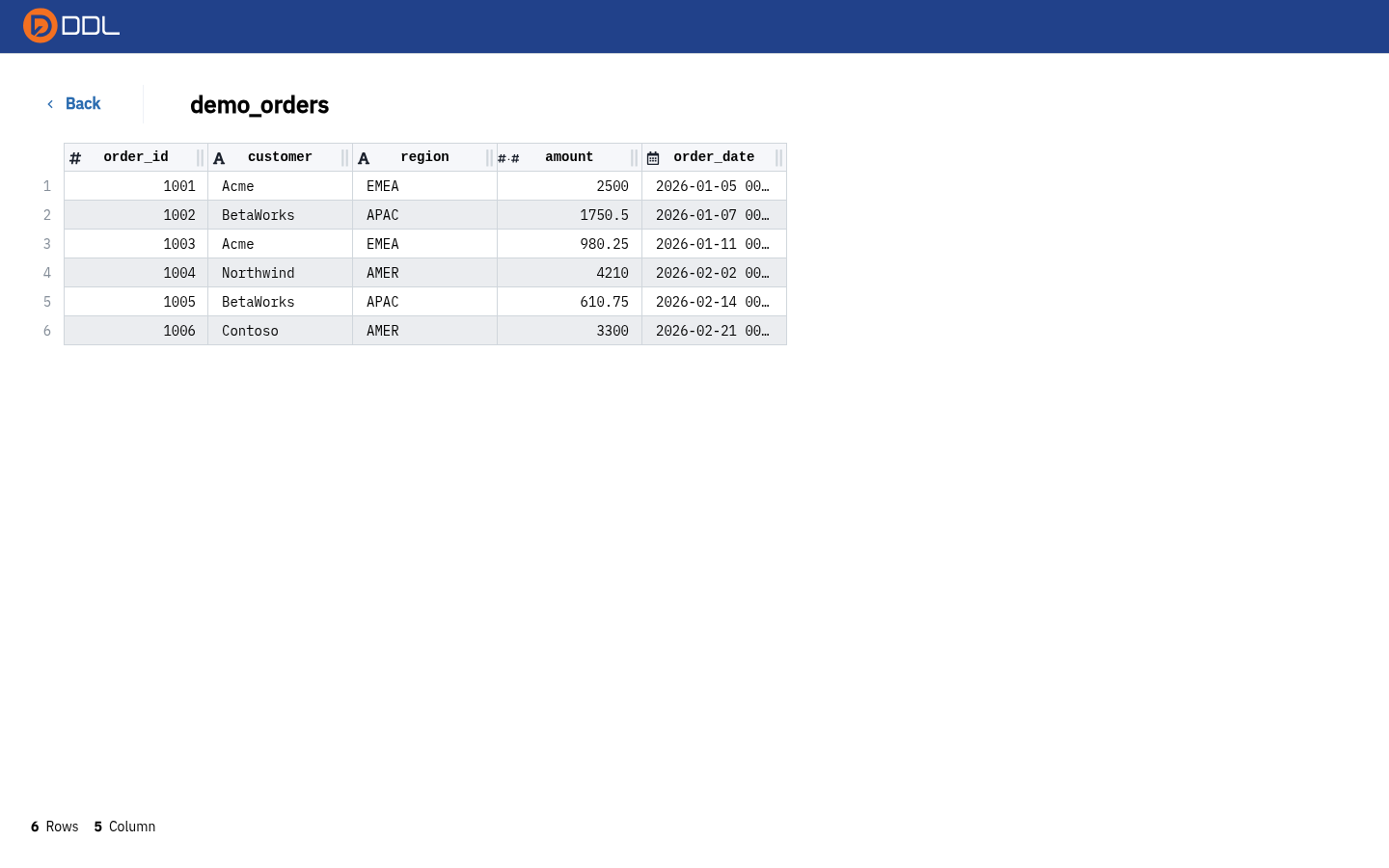 Header with a Back link and the dataset name, a row-number gutter, per-column type icons, the data grid, and a 6Rows 5Column counter in the footer.
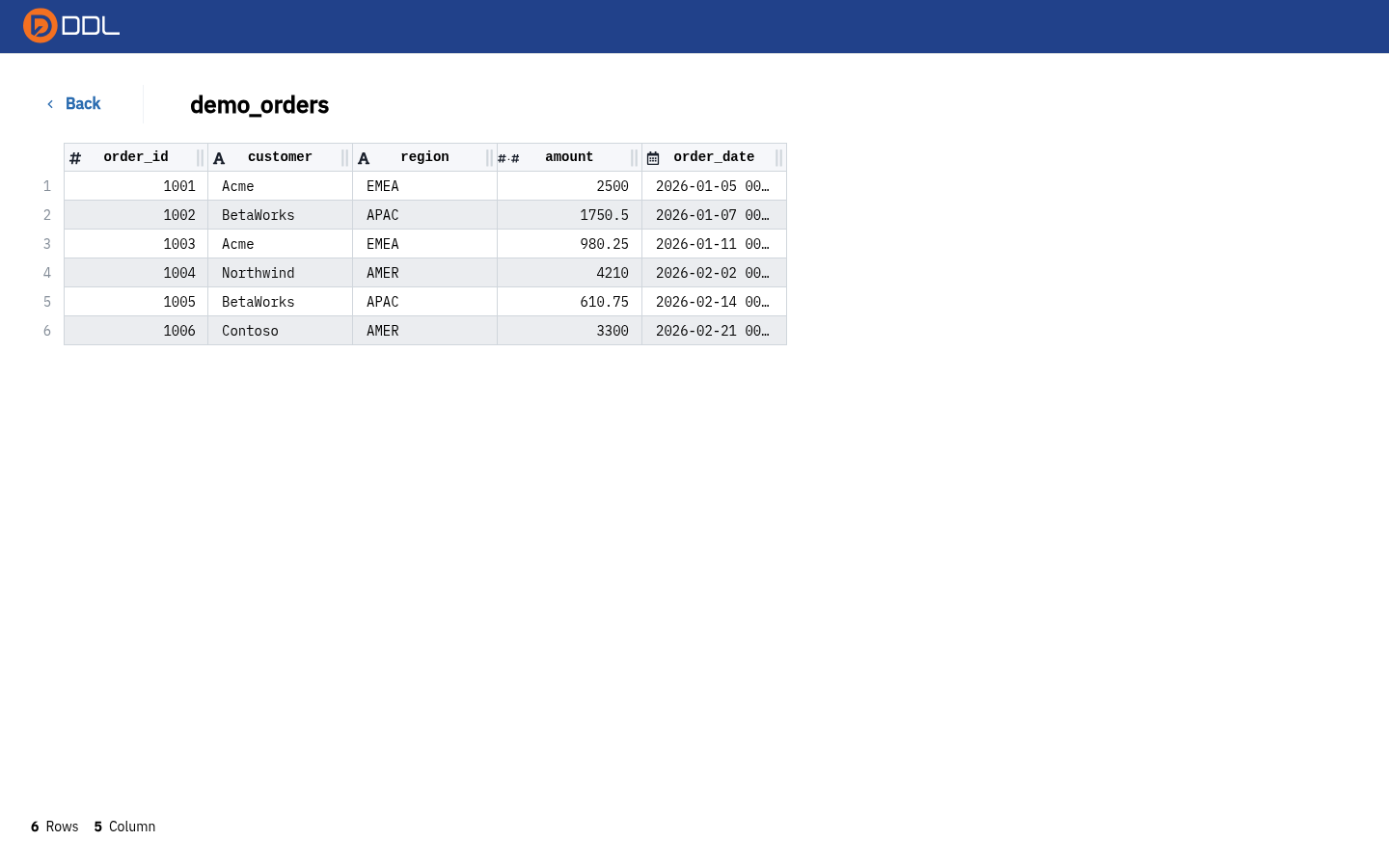 The same page captured full-height: every row of the file is rendered.
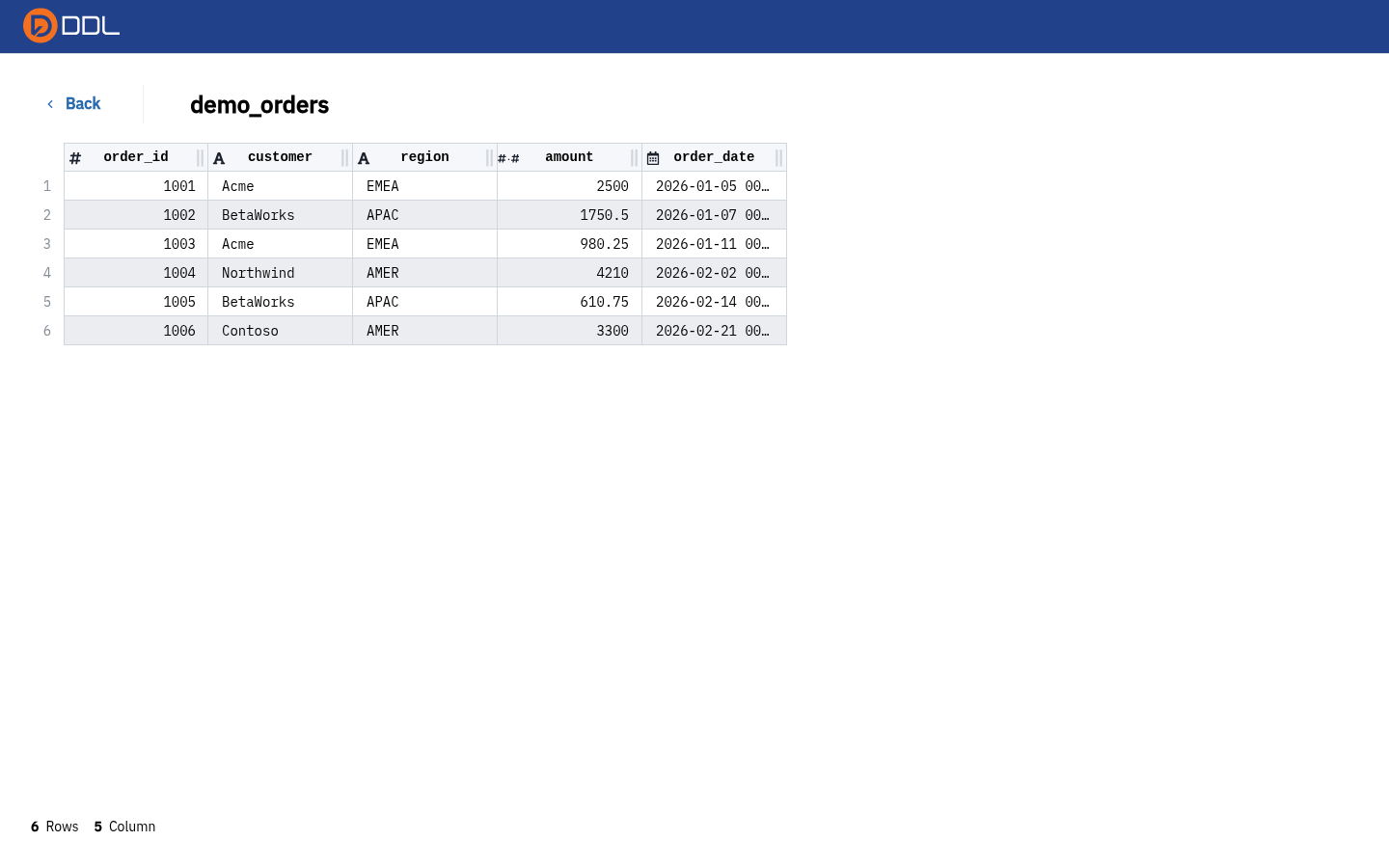 Arriving via See Details in the table row.
What you can read here:
| Element | What it tells you |
|---|---|
| Column type icons | Auto-detected type per column — integer, text/decimal and datetime each get their own icon |
| Data grid | The actual rows (rendered in full for small files) |
| Footer counter | Row and column count, e.g. 6Rows 5Column |
| Back | Returns to /data-repository |
Auto-detected types can surprise you
A column of numeric-looking strings can be typed as Text rather than a number. If a SQL aggregate or a downstream transform behaves oddly, check the type icons here first and cast explicitly in your query.
From dataset to project
A repository dataset only becomes usable inside a pipeline once a project imports it:
- Open the project's Pipeline canvas → Add data.
- Choose the Data Repository (Internal) tab, pick the dataset, Continue.
- Name the node representation, optionally tick Auto Sync from dataset source, click Import Dataset.
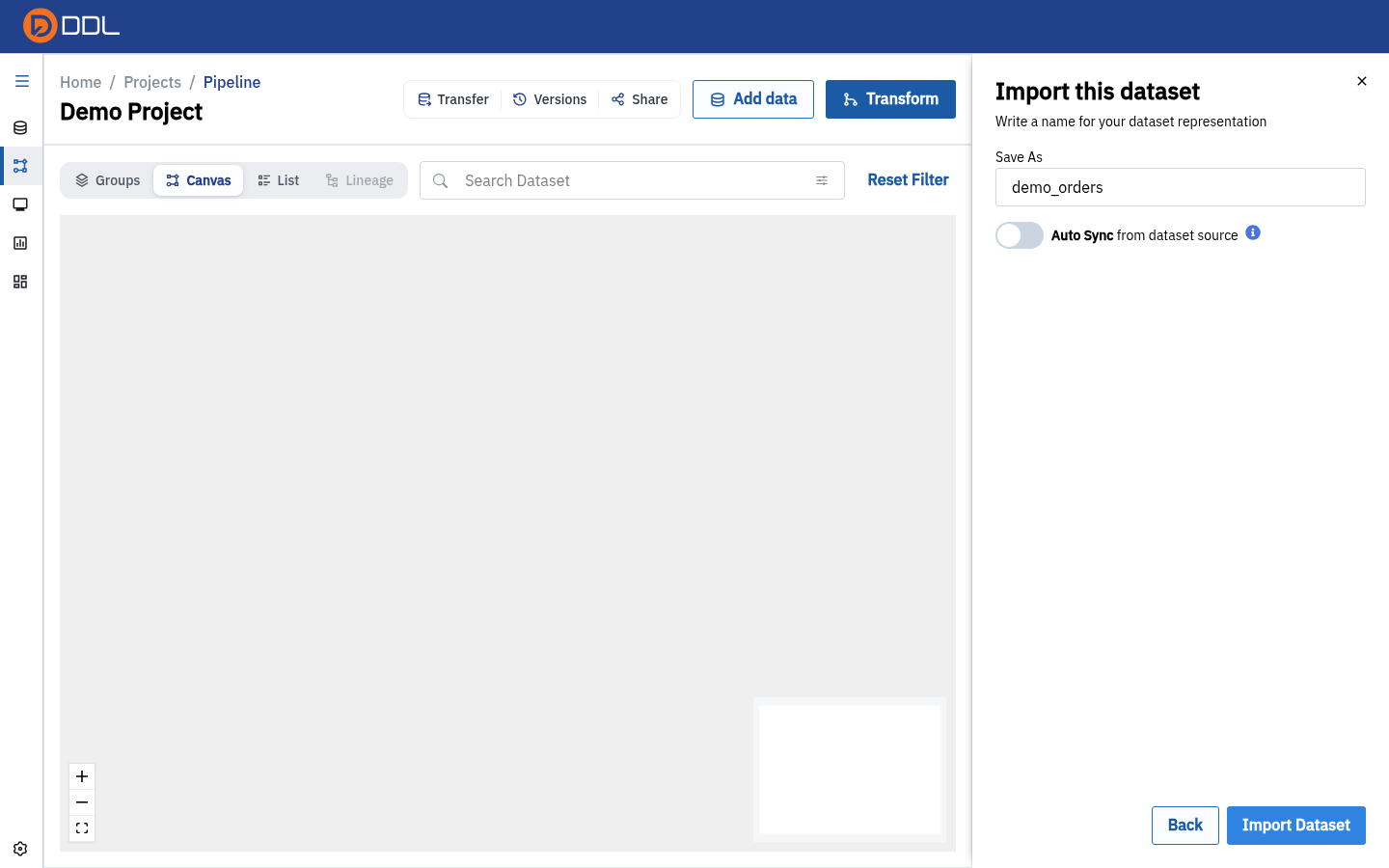 The import step where the dataset becomes a node.
Full detail, including the external-connector side of the same panel: Pipelines (ETL).
Related surfaces
| Surface | Relationship |
|---|---|
/home → Data Repository strip | Recent datasets + one-click create |
| Pipeline → Add data → Data Repository (Internal) | The consuming side: datasets become source nodes |
| Project Settings → Sensitive data (AI) | Together with the account-level AI policy switches, decides whether this data may be sent to a model provider — see AI & MCP integration |
| Monitoring | The upload itself is recorded as an Upload File process |
Next: Connections · Related: Pipelines (ETL), SQL Query