
Connections
Purpose: a connection is a saved set of settings and credentials that lets a project read from or write to an external system — a database, a spreadsheet, a bucket, a queue. Connections are managed per project at Connections (/projects/<id>/connections), on a page titled Manage Connections.
Security note for this page: it describes the fields DDL asks for, not the values to put in them. Never paste real host names, user names, passwords, tokens or bucket keys into a guide, a ticket or a support e-mail. Use a secrets manager and share access through your own process.
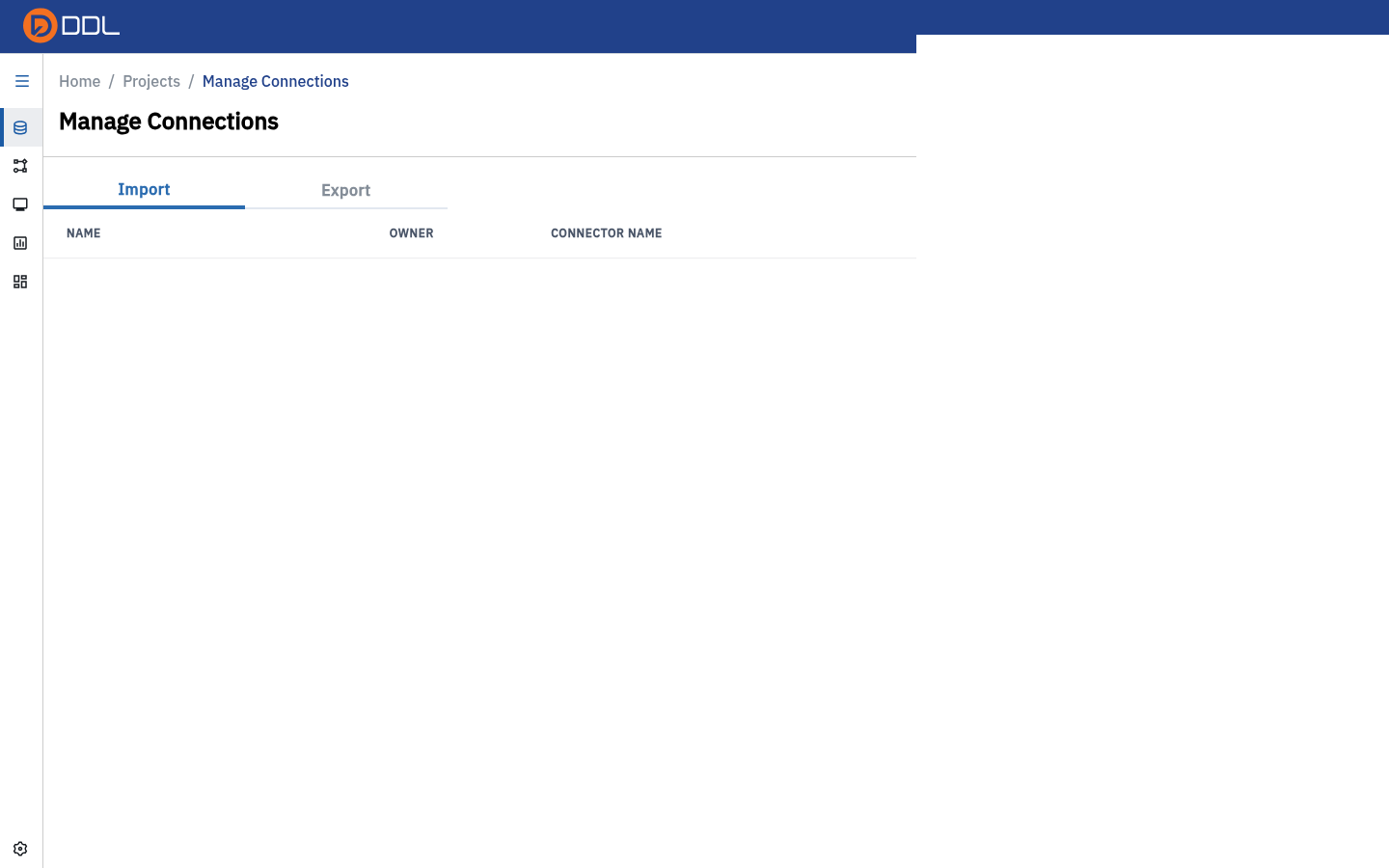
Manage Connections
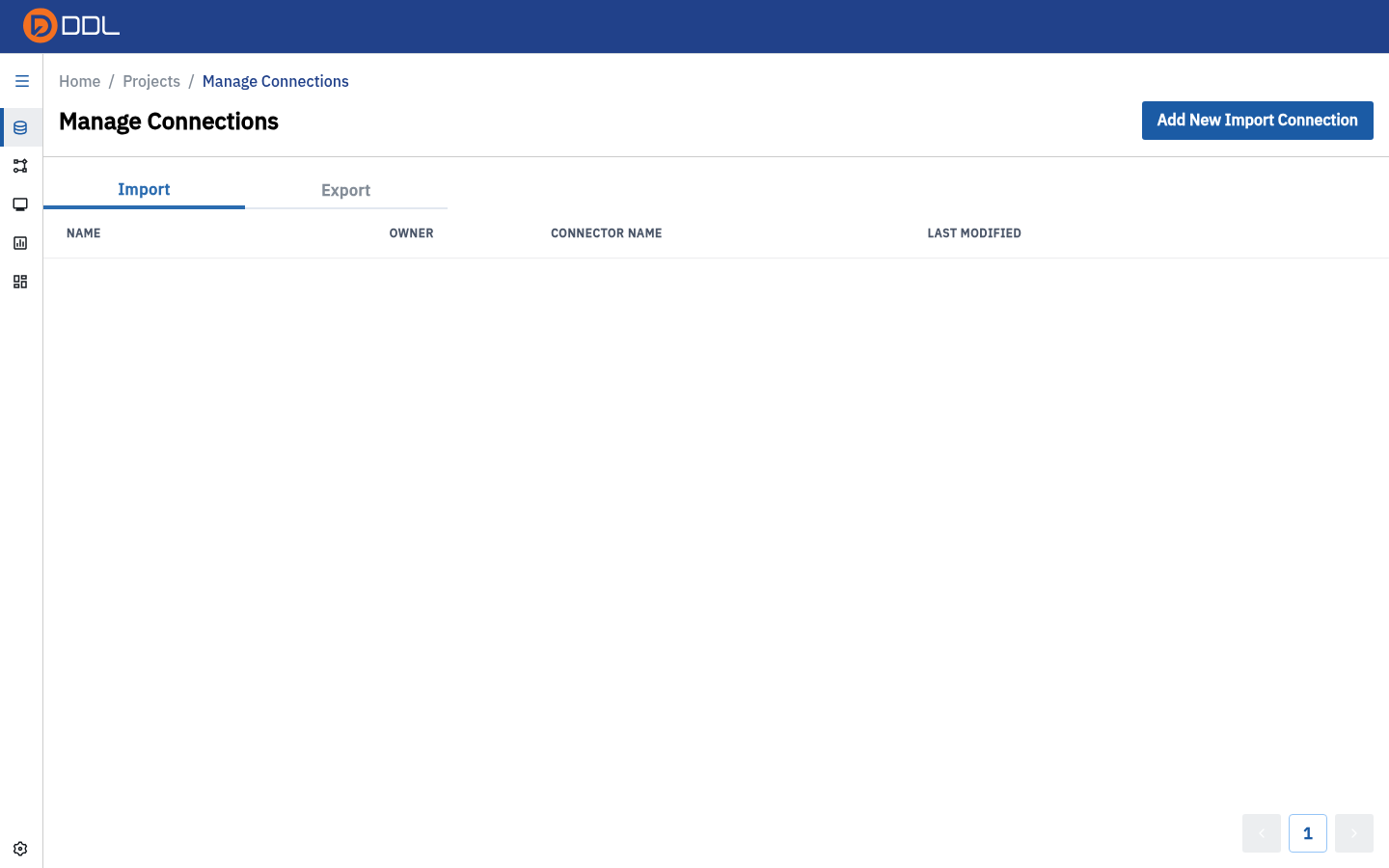 The Import tab: the Add New Import Connection button above a table of NAME · OWNER · CONNECTOR NAME · LAST MODIFIED . A brand-new project has no rows.
| Control | Behaviour |
|---|---|
| Import / Export tabs | Two separate lists: sources you pull from, and destinations you push to |
| Add New Import Connection | Opens the connector picker. The label changes to match the active tab |
| Search box | Filter connections by name |
| Table columns | NAME · OWNER · CONNECTOR NAME · LAST MODIFIED |
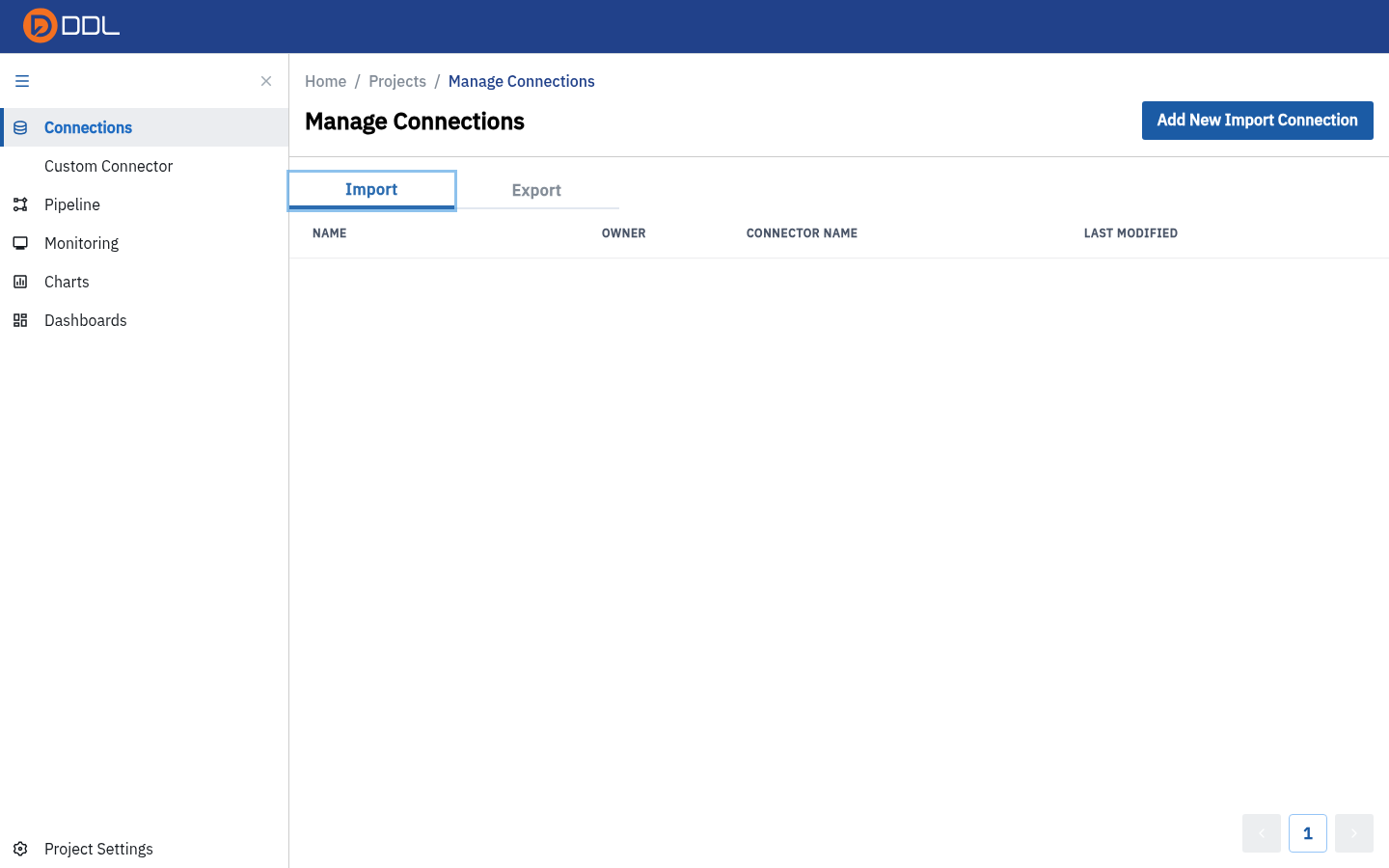 The Export tab uses the same table for destinations — these are the targets offered by Transfer on the pipeline toolbar.
Import vs Export is not cosmetic
A connection created as an Export target will not appear as a source when you add data, and vice versa. If your database is missing from the picker, check which tab you are on.
Create a connection
- Open Connections and click Add New Import Connection.
- Pick a connector in Select Connection Type — "Please choose one of the following connection types".
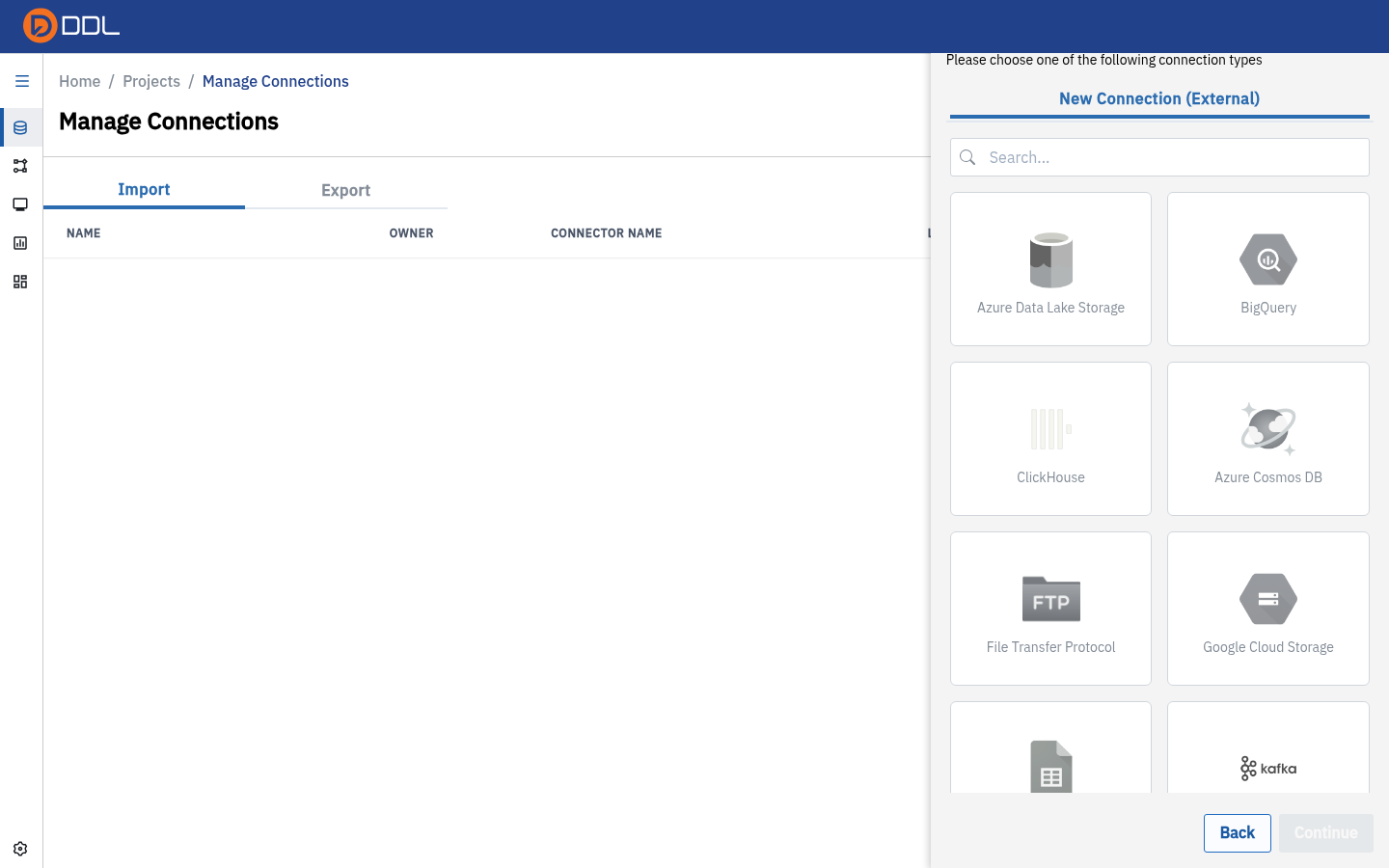 The picker: a searchable grid of connector cards with Back and Continue in the footer.
The same picker also appears inside the pipeline under Add data → New Connection (External).
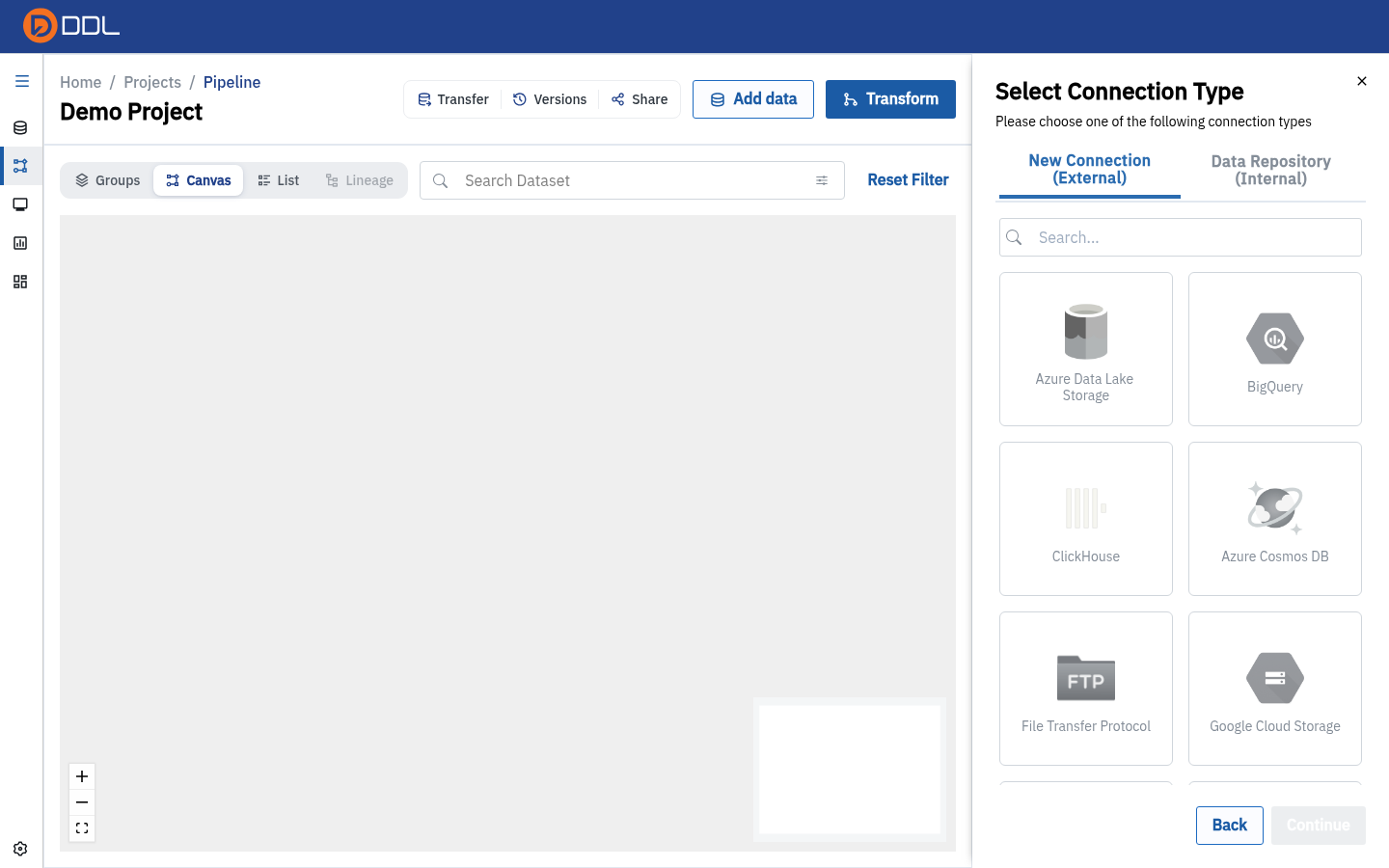 Reached from the canvas, the picker offers the same connectors plus the Data Repository (Internal) tab.
Connectors on offer
The panel lists these connector cards (verbatim), plus Upload File for one-off files:
| Category | Connectors |
|---|---|
| Cloud warehouses & lakes | BigQuery, Azure Data Lake Storage, Azure Cosmos DB, Google Cloud Storage, Amazon S3, S3 Object Storage |
| Relational databases | PostgreSQL, MySQL, Oracle, Microsoft SQL Server 2008 - 2019, Microsoft SQL Server 2000, ClickHouse |
| NoSQL & streaming | MongoDB, Apache Kafka |
| Files & SaaS | Google Sheets, Microsoft SharePoint, File Transfer Protocol, Salesforce |
- Fill in the connector's configuration form. Fields marked
*Required Fieldmust be completed; Back returns you to the picker without saving.
Example: Google Sheets
 The Google Sheets form: an instruction to share the sheet with the DDL service account address shown on screen, and a single required Google Sheets URL field.
What DDL asks you to do: share your spreadsheet with the service-account address that the form prints, then paste the sheet's link into the required URL field. There is no password field — access is granted by the share, and the URL is the credential. Treat the link accordingly: anyone who can read it can read the sheet.
Example: PostgreSQL
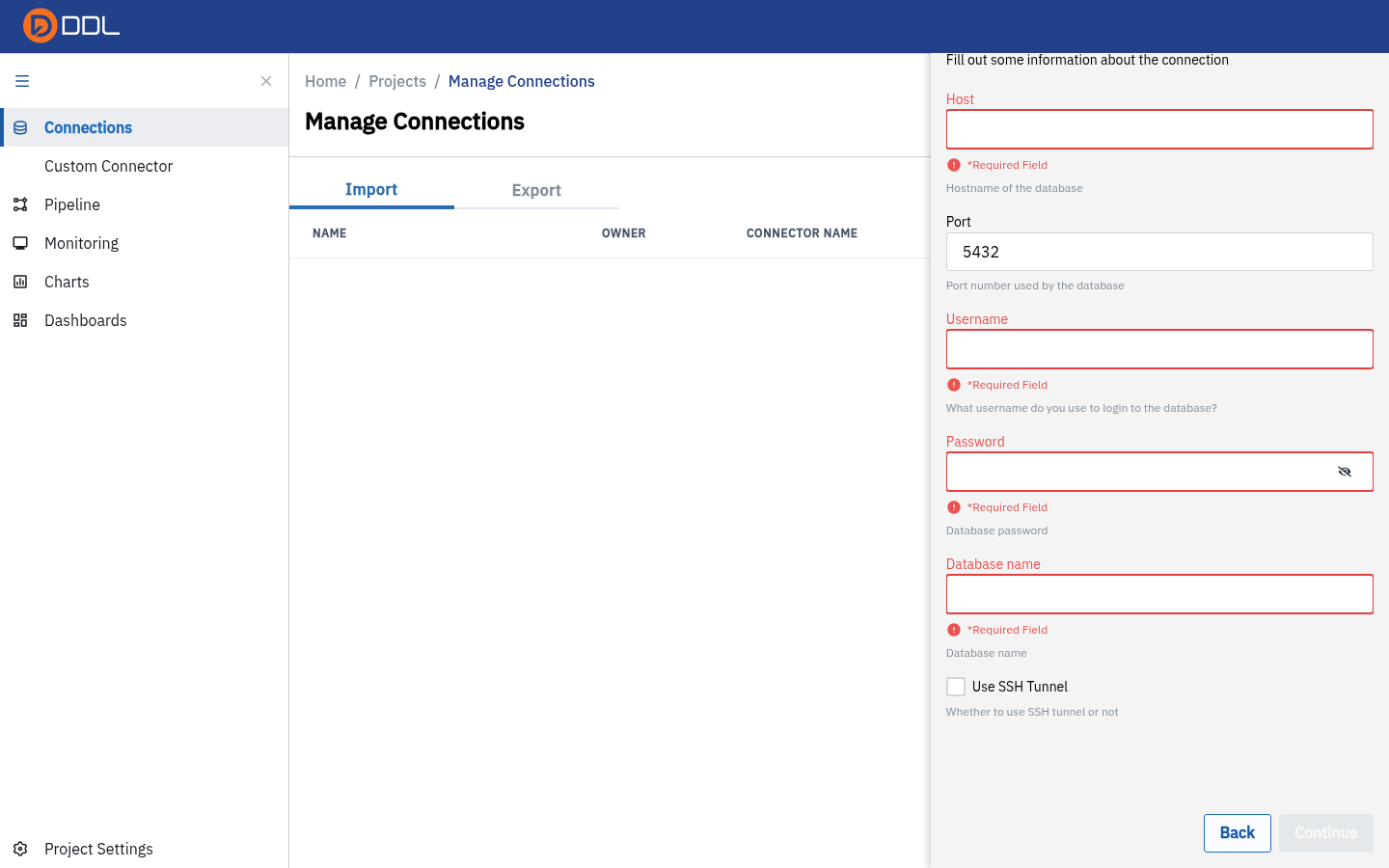 The PostgreSQL form: Host, Port, Username, Password (masked), Database name, and an optionalUse SSH Tunnel section.
| Field | What it is for |
|---|---|
| Host | Hostname of the database — required |
| Port | Port number used by the database |
| Username | required |
| Password | required; entered into a masked input and never displayed again |
| Database name | required |
| Use SSH Tunnel | Whether to use SSH tunnel or not — reveals tunnel host/port/user/key fields when enabled |
Saving a connection stores live credentials
DDL stores the values so scheduled syncs can run unattended. Anyone with access to the project can use the connection (though not necessarily read the password). Create a dedicated, read-only database account for DDL, restrict it to the schemas you intend to sync, and rotate it on your normal schedule.
Test before you build
Every saved connection offers Test. Run it once after creating the connection — a failure here is far cheaper to diagnose than a failed sync at 04:00. If a connection is unreachable from DDL's network, ask your administrator about allow-listing or the SSH tunnel option.
Custom Connector
Custom Connector in the left rail (visible while you are in the Connections area) opens /projects/<id>/connections/custom — for connectors your organisation has defined beyond the built-in list.
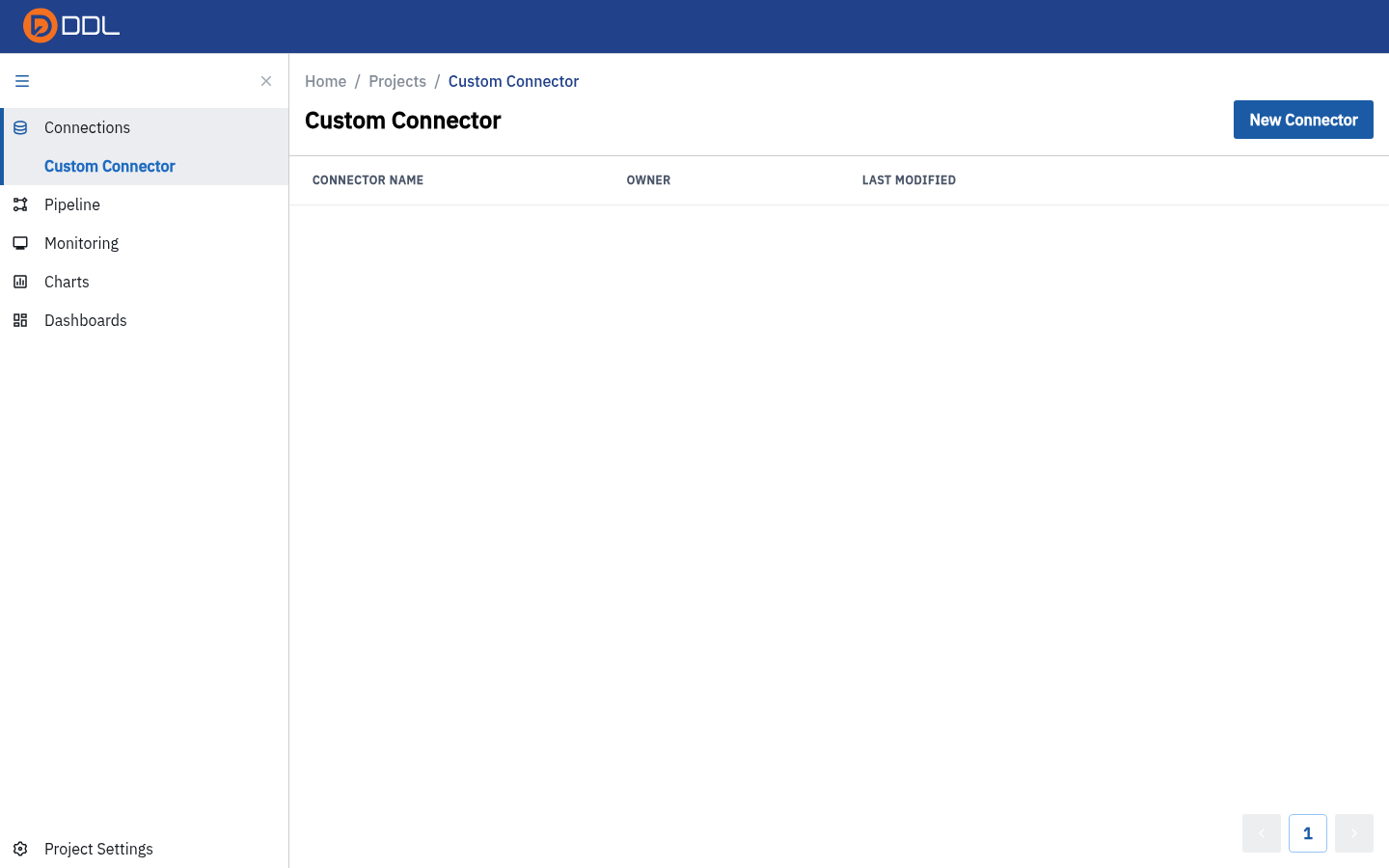 The New Connector button above a table of CONNECTOR NAME · OWNER · LAST MODIFIED .
- Click New Connector and define the connector.
- Once it exists, it appears alongside the built-in connectors in the picker.
The collapsed rail link can mislead you
With the icon rail collapsed, the Custom Connector icon points at a path that returns the branded 404 page. Expand the rail (hamburger) and click the labelled item, or navigate through Connections.
Using a connection
| From | What you do | Guide page |
|---|---|---|
| Pipeline → Add data | Turn an external source into a source node | Pipelines (ETL) |
| Pipeline → Transfer | Push node output to an Export connection | Pipelines (ETL) |
| Schedule | Keep an imported source fresh on a cadence | Schedules |
| Monitoring | Read the log when an import/export fails | Monitoring |
Troubleshooting
| Symptom | Likely cause | What to do |
|---|---|---|
| The connector you need is not in the picker | It is an Export-only target, or your instance restricts connectors | Check the other tab; ask your DDL administrator |
| Form will not advance past Continue | A *Required Field is empty | Fill every required field; masked password fields look empty by design |
| Connection saves but syncs fail | Network/permission problem at the source | Test the connection, then read the process log in Monitoring |
| Google Sheets sync returns nothing | The sheet was not shared with the DDL service account | Share it with the exact address shown on the form |
Next: Pipelines (ETL) · Related: Data Repository, Monitoring